

Your status transitions, drawn as a diagram you can edit. The checkbox grid is precise and, past about a dozen statuses, unreadable. You cannot see that a status is a dead end, or that nobody can reach it, by scanning ticks. The diagram answers that at a glance and lets you fix it in place. It is a view over Redmine's own workflow rules: there is no second store, no sync step, and nothing to reconcile.
On RedminePRO Cloud
Availability
Business and above.
Turn it on
Nothing to turn on. Open Administration → Workflow Designer, or follow the
Workflow Designer link from Administration → Workflow. There is no module to
enable and no setting to configure.
Permissions
Administrators only, the same authority the built-in workflow page requires. There is deliberately no role permission of its own, because "may edit the workflow as a diagram but not as a grid" is not a distinction worth holding, and a second rule could only disagree with the first.
Settings
None. This feature stores nothing you configure, only the box positions you drag, saved per tracker.
Using it
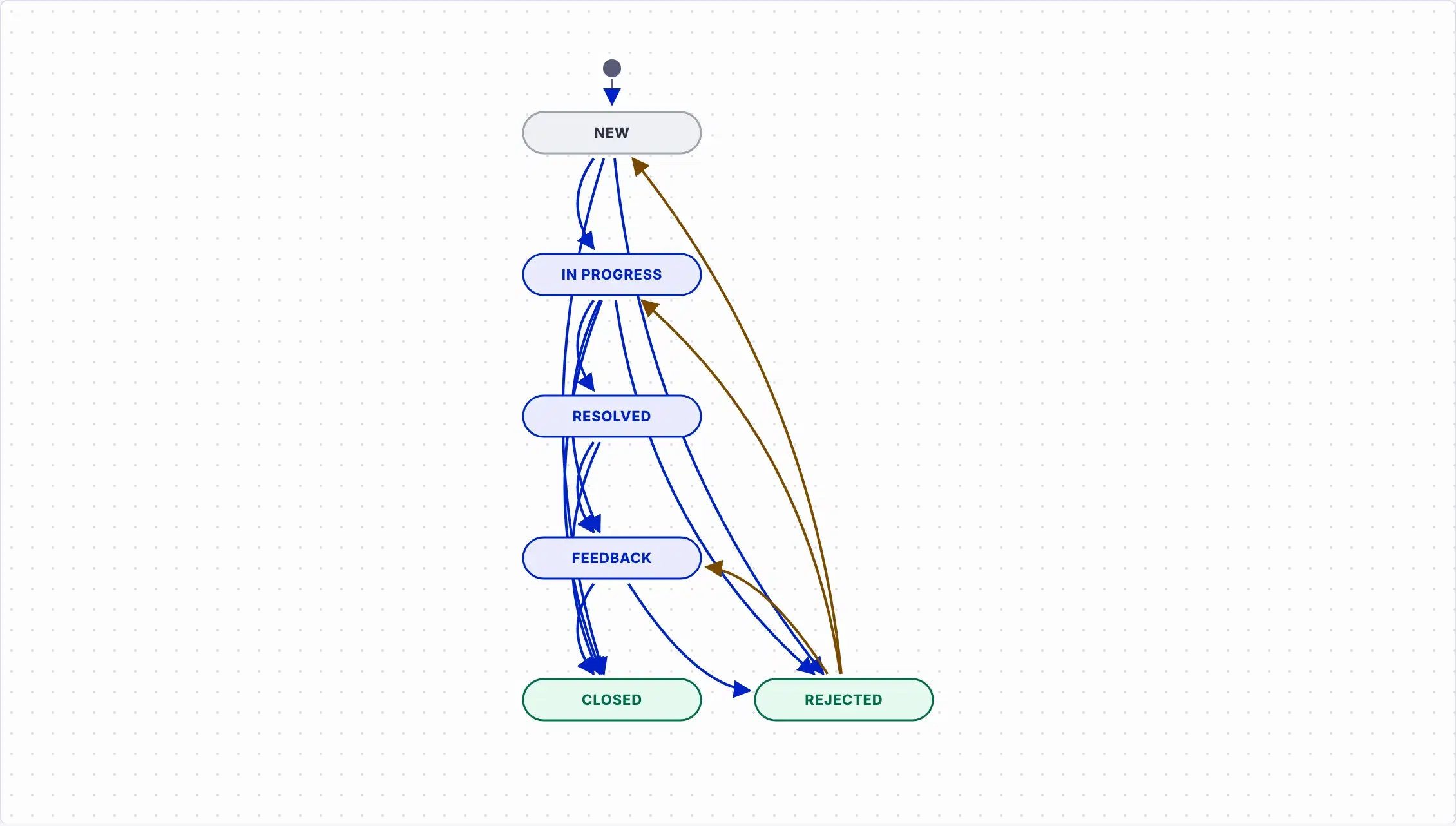
- Open Administration →
Workflow Designer. - Pick a tracker and a role with the selectors at the top. The pair is in the address, so a diagram is a link you can send.
- Choose
allin the role selector to see every role at once, the same option, spelled the same way, as the built-in workflow page. A faded arrow means only some roles allow that transition, and its label counts them:2/3. Hover it to see which roles, and which kind of transition they have. Adding a faded arrow gives it to every role; removing it takes it from all of them. - Read the chart. A box is a status; closed statuses have a filled body and a
heavier border. An arrow is an allowed transition. A solid line means
Anyone with the role, dashed meansAuthor only, dotted meansAssignee only. Style and theLegendcarry the meaning, never colour alone. - Add a transition: hover a box and drag from the small circle on its right
edge to another box.
Anyone with the roleis ticked for you. - Change or remove one: click the arrow and tick or untick who may use it. Unticking the last one removes the transition.
- Drag a box's body to move it.
Re-layoutthrows your arrangement away and returns to automatic placement. Positions never affect a rule. - Staged changes collect in a bar at the foot of the page, listed by name.
Nothing is written until you press
Save changes;Discarddrops them all.
Statuses with no transitions are drawn anyway. The built-in grid hides them, and an unreachable status is exactly what you opened a diagram to notice.
Troubleshooting
Someone else saved while my changes were staged. The save is refused and nothing is written, because the page recorded the workflow's state when it loaded. Refresh and stage your changes again. This is deliberate: silently overwriting another administrator's rules is worse than making you redo a minute's work.
A status was deleted while my changes were staged. Same answer. The save is refused, the stale items are named, and no part of the set is written.
A transition I expect is missing from the chart. Check the tracker and role selectors. Transitions belong to a tracker and role pair, and a rule set for one role is invisible while another is selected.
Read-only and required fields are not here. Those stay on the built-in
Field permissions for this tracker and role tab, which the diagram links to for
the pair you are looking at. Creating statuses and copying a workflow between
trackers also stay in the built-in pages.
Zoom does nothing on the mouse wheel. By design. Use Zoom in, Zoom out
and Actual size, so scrolling a long page never zooms the chart by accident.