

A checklist on every issue, below the description: a progress bar, collapsible sections with their own counts, and items you can tick without opening the edit form. Items carry an optional assignee and due date, templates fill a checklist in one click or automatically by tracker, and every change lands in the issue history and the notification emails. Optionally, the checklist can drive the issue's percentage done or hold the issue open until everything is ticked.
On RedminePRO Cloud
Availability
Every plan.
Turn it on
Per project: Project → Settings → Modules → tick Checklists. This is a real
module. The panel appears only where it is enabled.
Permissions
Administration → Roles and permissions, in the Checklists section of the
role form:
| Permission | What it grants |
|---|---|
Edit checklists |
Add, edit, delete and reorder items and sections, apply templates, set an assignee or due date, and manage that project's templates and overrides |
Tick/untick checklist items |
Tick and untick only |
Anyone who can see the issue sees its checklist; without either permission it is
read-only. Give Tick/untick checklist items to the people doing the work and
Edit checklists to whoever shapes the process. The global template library is
administrators only.
Settings
Administration → Plugins → RedminePRO Checklists. These are the
workspace-wide defaults:
| Setting | Default | Effect |
|---|---|---|
Sync issue % Done from checklist |
Off | Percentage done is calculated from ticked items, equal weight each, and the field becomes read-only on issues that have a checklist |
Block closure until all items are ticked |
Off | An issue with a checklist cannot move to a closed status while any item is unticked |
Copy ticked state when an issue is copied |
Off | Off resets a copied checklist to unticked; on carries the ticks over |
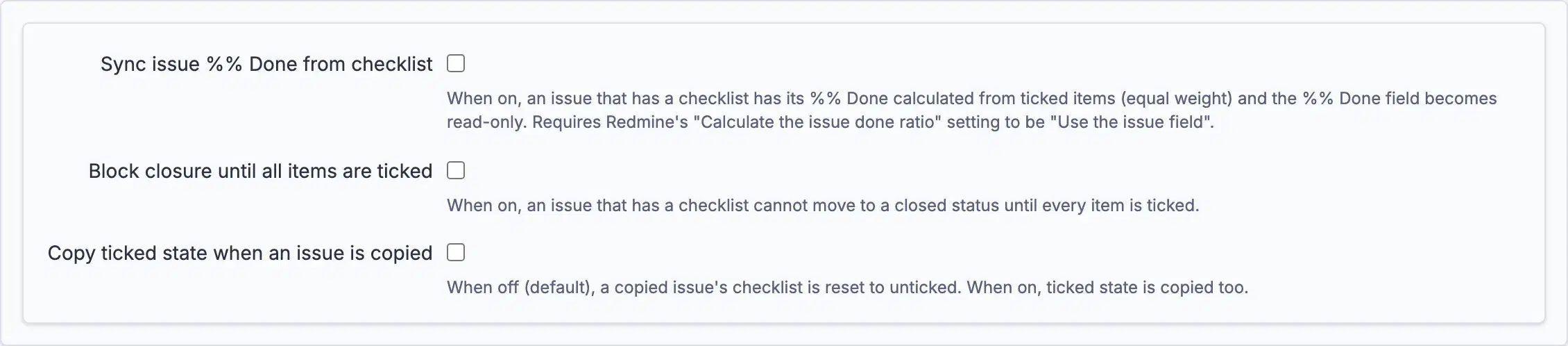
The first one needs Administration → Settings → Issue tracking →
Calculate the issue done ratio with set to Use the issue field. Issues with no
checklist keep their manual value either way.
Both enforcement settings can be overridden per project on that project's
Checklists page, which needs Edit checklists. Each is three-way:
Use workspace default, On, Off.
Using it
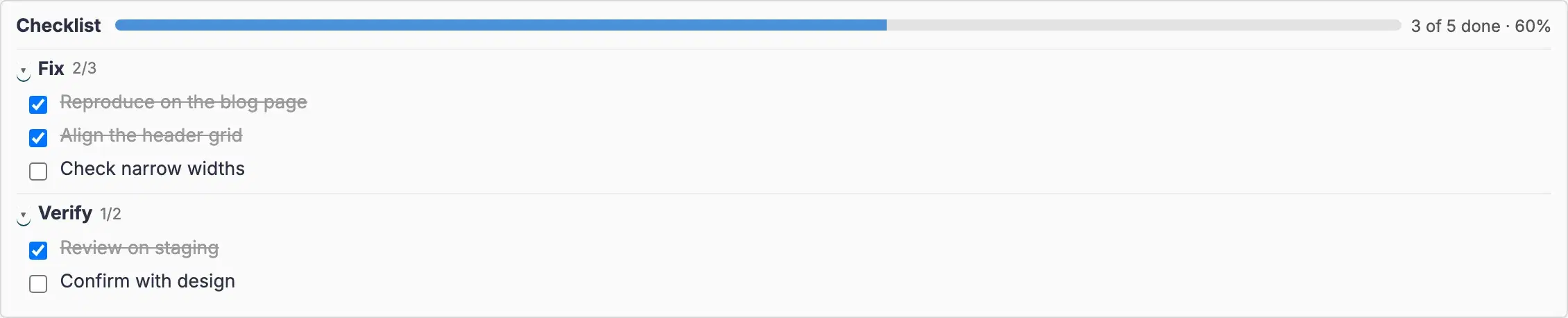
- Open an issue in a project where the module is on. The checklist sits below the description.
- Tick items straight from the read view. That never needs the edit form.
- Press
Editon the issue to add, rename, delete or reorder items. The panel moves into the edit form so it stays in view, and returns to its usual place if you cancel. Add sectiongroups items under a heading;Add itemadds one. Drag to reorder, within a section or across sections.- Paste a multi-line list into the add box to get one item per line. A leading bullet, number or checkbox marker is stripped, and a line whose checkbox is already ticked arrives ticked. A paste is capped at 100 lines and a checklist at 500 items, and you are told when a cap applied.
Set assignee / due dateon any item. Overdue items are highlighted.Insert template…fills the checklist from the library,Append to checklistorReplace checklist.
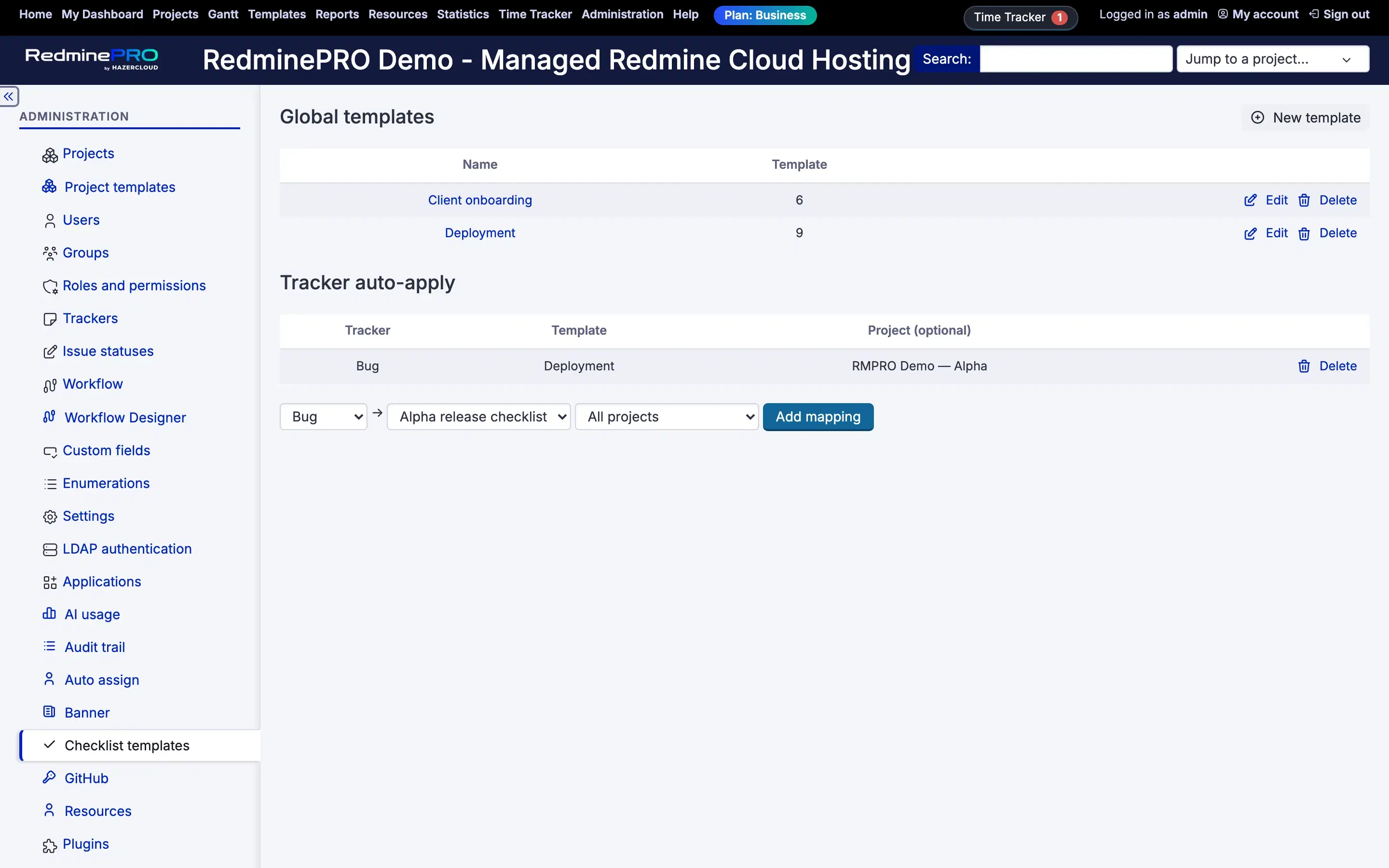
Templates live at Administration → Checklist templates, plus a per-project
library. A template is plain text: one item per line, and a line starting with a
hash and a space begins a section. Tracker auto-apply adds a template to every
new issue of a chosen tracker, optionally only in one project.
Troubleshooting
No checklist on the issue. The module is off for that project. Project →
Settings → Modules → Checklists.
Percentage done will not change. Expected when Sync issue % Done from checklist is on: the field is calculated and read-only. Turn it off for the
project, or untick the setting.
The setting is on but nothing is calculated. Administration → Settings →
Issue tracking → Calculate the issue done ratio with is not Use the issue field.
An issue will not close. Block closure until all items are ticked is in
force and something is unticked. The refusal names how many items are left.
Only checkboxes are offered, no add or delete. That is the read view. Press
Edit on the issue to manage items, and note the server checks the permission
on every change regardless of what the page offers.
A pasted list came in short. A paste stops at 100 lines and a checklist at 500 items; both cases say so when they happen. Long lines are shortened to 500 characters rather than rejected.