

Sectioned checklists on every issue: templates with tracker auto-apply, item assignees and due dates, audit trail, REST API, and admin-controlled % Done sync and closure blocking.
Sub-items inside an issue, ticked off individually, without creating a child issue for every step. Definition-of-done items, release steps and review gates live on the issue itself rather than in a comment that scrolls away. Progress is visible at a glance instead of requiring somebody to read the thread and infer how far along the work actually is. They also survive handover, because the remaining steps are written down on the issue rather than held by whoever started it.
Plenty of work is one issue with several steps inside it. A release has a run of steps. A review has gates. A piece of work is only done when a short list of conditions is met. Those steps belong on the issue, where everyone looking at it can see them and tick them off one at a time.
A checklist puts them there. It sits on the issue, below the description, with a progress bar across the top. Anyone who can see the issue can see how far along it is without reading the history to work it out.
Items can sit at the top level or be grouped into sections. Each section collapses and carries its own count, so a long list reads as a few named stages. An item holds up to 500 characters of text. It can have an assignee, who can be any member of the project, and a due date. Overdue items are highlighted. Items reorder by drag and drop, within a section or across sections.
Reading an issue and changing its checklist are kept apart. While the issue is being read, the panel offers only the checkboxes, so ticking an item never needs the edit form. Adding, editing, deleting and reordering items, and inserting a template, appear once you press Edit on the issue, and go away again on Cancel. The panel then moves into the edit form, just above Log time, so it stays in view while you work. It is the same live panel, and it returns to its usual place when you cancel.
You can paste a list rather than type it. Paste two or more lines into the add box and each line becomes an item, in order, at the end of that section. A leading bullet, number or checkbox marker is stripped, and a line whose checkbox is already ticked arrives ticked. Pasting into an existing item's editor merges the first line into that item and adds the rest right after it. A single line behaves as normal typing.
A template holds sections and items, and you edit it as plain text. One item goes on each line. A line that starts with a hash and a space begins a section, and lines before any section become top-level items.
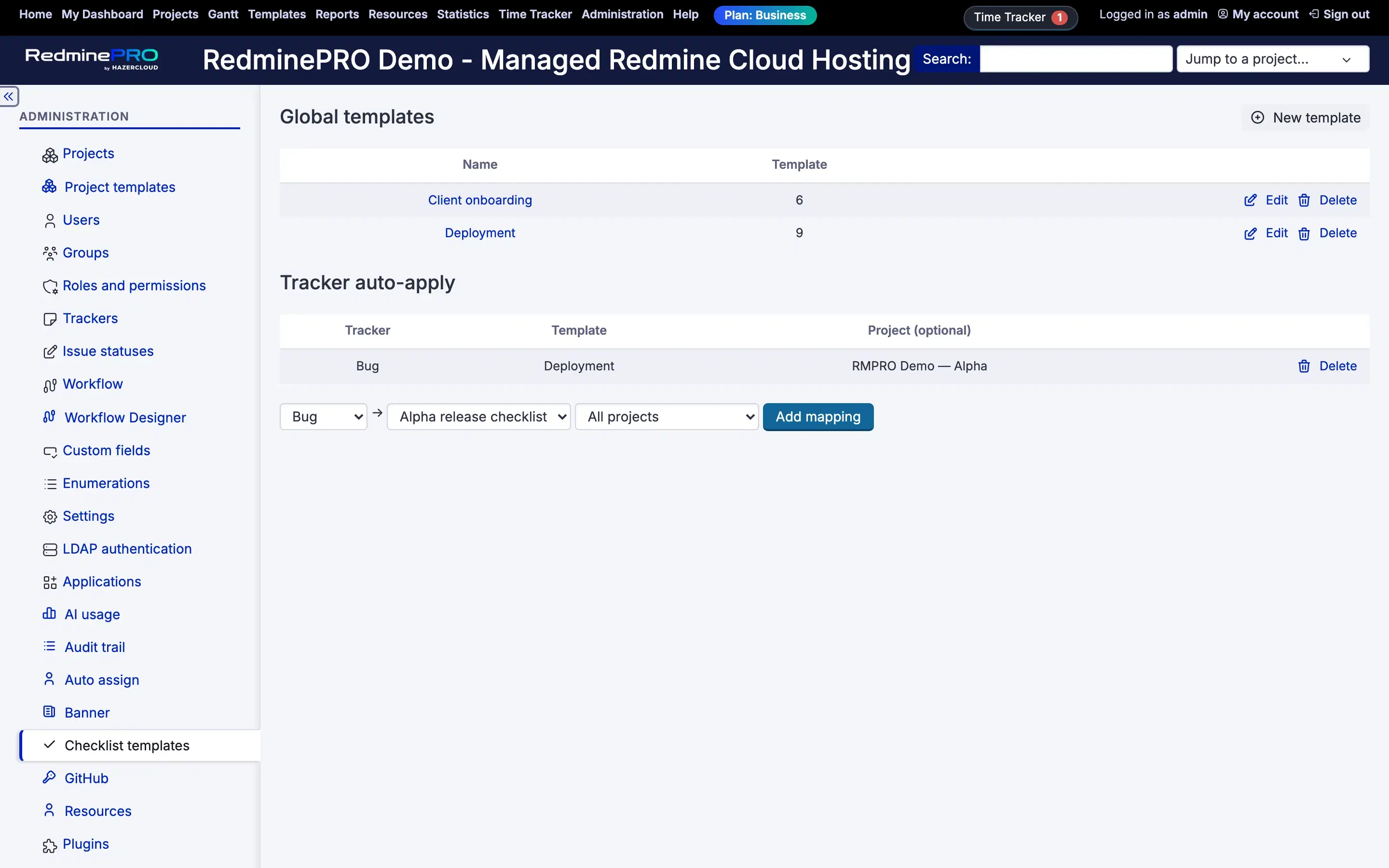
There are two libraries. The global one is for administrators only. Each project can also keep its own templates, visible only in that project. From the panel's Insert template menu you can append a template to an issue's checklist or replace the checklist with it.
Tracker auto-apply goes one step further. Map a tracker to a template, optionally only in one project, and every new issue of that tracker is created with its checklist already there. That holds for issues created in the web interface and through the REST API. A project-specific mapping wins over a global one.
Copying an issue copies its checklist too. The ticks are reset on the copy unless an administrator has chosen to carry them over.
Two settings let the checklist do more than record progress. Both are off until an administrator turns them on, and both are set as defaults for the whole workspace.
| Setting | Default | Effect |
|---|---|---|
| Sync issue % Done from checklist | Off | Percentage done is calculated from ticked items, equal weight each, and the field becomes read-only on issues that have a checklist |
| Block closure until all items are ticked | Off | An issue with a checklist cannot move to a closed status while any item is unticked |
| Copy ticked state when an issue is copied | Off | Off resets a copied checklist to unticked. On carries the ticks over. |
The percentage is rounded to the nearest whole number and recalculated on every tick, add and delete. It needs Redmine to calculate the issue done ratio from the issue field. Issues with no checklist keep their manual value either way.
Blocking closure holds everywhere an issue can be closed: the web interface, the REST API and bulk edit. When a close is refused, the message names how many items are left.
Each project can override both enforcement settings on its own Checklists page. The choice is three-way: use the workspace default, on, or off. Changing it needs the Edit checklists permission.
Checklists are a project module, switched on per project. Two permissions are granted per role.
| Permission | What it grants |
|---|---|
| Edit checklists | Add, edit, delete and reorder items and sections, apply templates, set an assignee or due date, and manage that project's templates and overrides |
| Tick/untick checklist items | Tick and untick only |
Viewing follows the issue. Anyone who can see the issue sees its checklist, and without either permission it is read-only. Hiding the editing controls in the read view is a convenience. The server checks the permission on every change regardless of what the page offers, and the REST API enforces the same permissions and issue visibility.
There are caps, and you are told when one applies. A paste stops at 100 lines. A checklist holds up to 500 items. A line longer than 500 characters is shortened rather than rejected.
Every change is written to the issue history and goes out through Redmine's notification emails. Several quick ticks by the same person collapse into one entry, and a pasted list is recorded as a single entry saying how many items were added.
Checklist data is kept in its own tables, with no changes to Redmine's core schema. On your own Redmine, removing the plugin drops those tables and the checklist data with them, and the issues, their history and everything else are untouched.
Checklists are on every plan, from Startup. Every plan keeps full Redmine administrator access.
See what each plan includes, or look at the rest of what RedminePRO adds to Redmine.
Set-up and permissions: Checklists in the Knowledge Base. Install it on your own Redmine.
7-day trial on any plan. Full Redmine administrator access from the first day.