

Start a timer on the ticket you are working on and stop it when you are done. The point is to log time as you work instead of reconstructing a week on Friday afternoon. Everything it produces is an ordinary Redmine time entry, so every report, filter and export you already use keeps working. This adds a way to create them and a way to look at them, and stores nothing of its own about time already logged.
On RedminePRO Cloud
Availability
Plus and above.
Turn it on
Per project: Project → Settings → Modules → tick Time Tracker. The timer
needs Redmine's own time tracking enabled for the project too, since what it
writes is a normal time entry.
Permissions
Timing and logging use Redmine's own rights. A person who may log time on a
project may use the timer there. One permission is added, in the Time Tracker
section of the role form:
| Permission | What it grants |
|---|---|
View team timesheet |
See other people's logged time in the Timesheet, not only your own |
Without it, the Timesheet shows Your logged time and nothing else.
Settings
Administration → Plugins → RedminePRO Time Tracker:
| Setting | Default | Effect |
|---|---|---|
Round logged time to (minutes) |
15 | Rounds a stopped timer to the nearest step. 1 means no rounding |
Minimum entry (minutes) |
1 | Anything shorter is refused rather than logged as nothing |
Stop a forgotten timer after (hours) |
8 | A timer left running overnight is closed into a draft rather than billing the night |
Default activity |
-- I pick each time -- |
Pre-selects an activity when stopping |
Expected hours per day (timesheet) |
8 | Used to flag days with missing time. 0 turns the flags off |
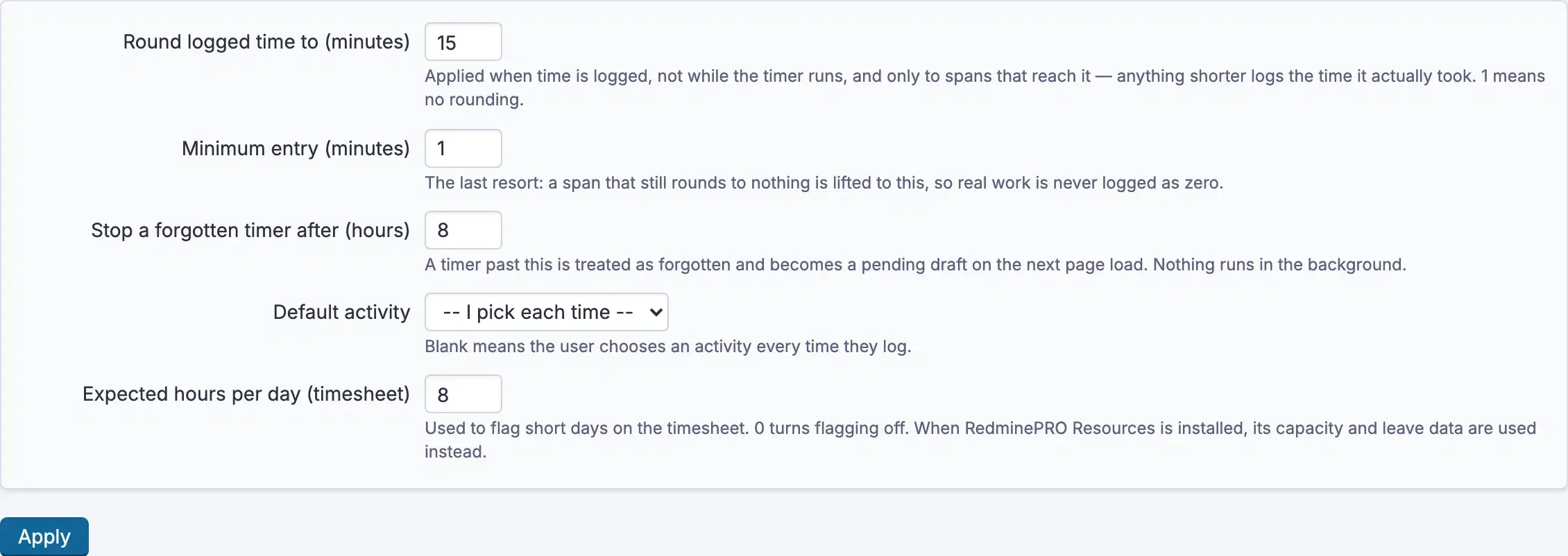
Each person can override the activity from My settings → My default activity.
Using it

- Open an issue and start the timer.
- A chip appears in the top bar naming the issue it is timing, with
Elapsedcounting up.Go to the ticketreturns you to it from anywhere. - Stop it.
Log this timeasks forHours,Activityand aComment, with the hours filled in from the elapsed time and rounded to your step. - The result is an ordinary time entry, visible everywhere Redmine shows spent time.
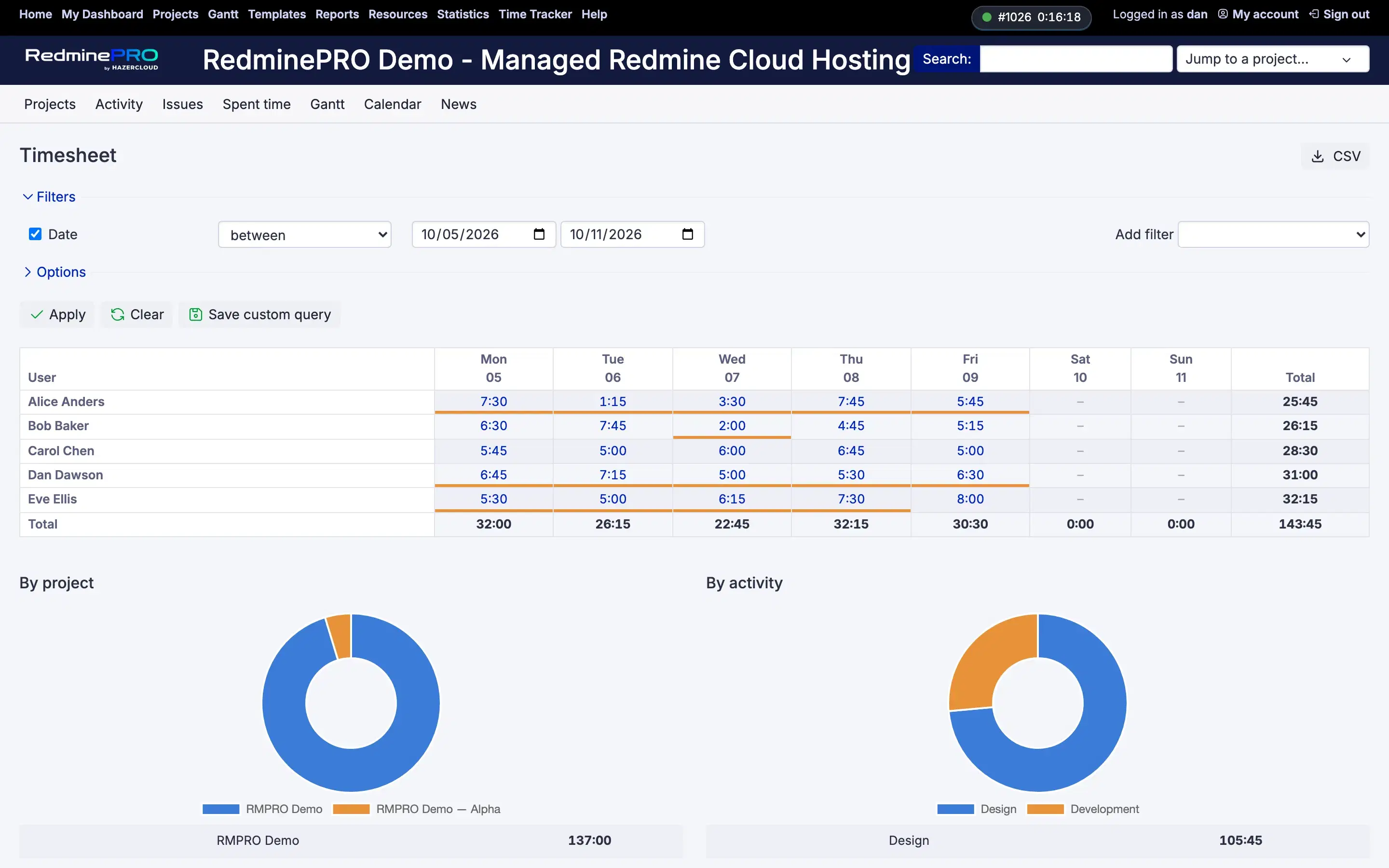
The Timesheet covers the same core data. Choose a Range, Week or Month,
and group By project or By activity. CSV exports what you are looking
at. With View team timesheet you can look at the team; without it, at yourself.
Click a day to open that person's entries for it. The day sheet lists Project
first and Issue second, because every entry belongs to a project and only some
belong to an issue, an entry logged against a project alone shows its project
and leaves the issue blank. CSV and PDF download that day: the CSV is the
complete record, one row per entry with a total; the PDF is the version you hand
to somebody. Both show exactly what the page shows, so an export can never
include an entry you could not already see.
A timer left running past the limit is closed into a draft for you to confirm, rather than silently logging hours nobody worked.
Troubleshooting
No way to start a timer on an issue. The module is off for that project, or Redmine's own time tracking is, or the account may not log time there.
The logged time is not what the timer showed. Round logged time to (minutes) rounded it. Set it to 1 for no rounding.
A very short timer was refused. Minimum entry (minutes) sets the floor.
This is deliberate. A run of near-zero entries is noise in every report that
reads them afterwards.
A timer stopped by itself. It ran past Stop a forgotten timer after (hours) and was closed into a draft for you to confirm or discard.
The timesheet shows only me. That is the default. View team timesheet
widens it.
A day is flagged as missing time. It is below Expected hours per day (timesheet). Set that to 0 to turn the flags off entirely.