

Point Claude Desktop, Claude Code, Cursor or any Model Context Protocol client at your workspace and it can search, read, create, update and comment on issues, as a real person, with that person's exact permissions. Every read goes through the same visibility rules the web interface uses and every write through the same workflow and field rules, with the owner of the API key as the actor. The feature adds one capability: whether you may connect a client at all. It never widens what is behind it.
Client setup is covered separately in connecting an MCP client.
On RedminePRO Cloud
Availability
Plus and above.
Trying it first
The RedminePRO demo workspace has MCP switched on whatever the price list says, so you can point a real client at a real workspace before you buy anything. The settings page says as much there, and still names the plan a paid workspace needs.
Turn it on
On by default once available. Installing it is the decision. Check
Administration → Plugins → RedminePRO MCP, where Enable the MCP endpoint
is the master switch and the page also shows the Endpoint address, the
Protocol revision implemented and the current Plan.
The same page carries a Connecting a client section with the setup recipes
already filled in with your own workspace's endpoint address. The one thing a
client needs that no documentation can know. It never shows anybody's API key:
each person collects their own from My account → API access key.
There is no module to enable and no role permission to grant. Who may connect is decided on this page and nowhere else.
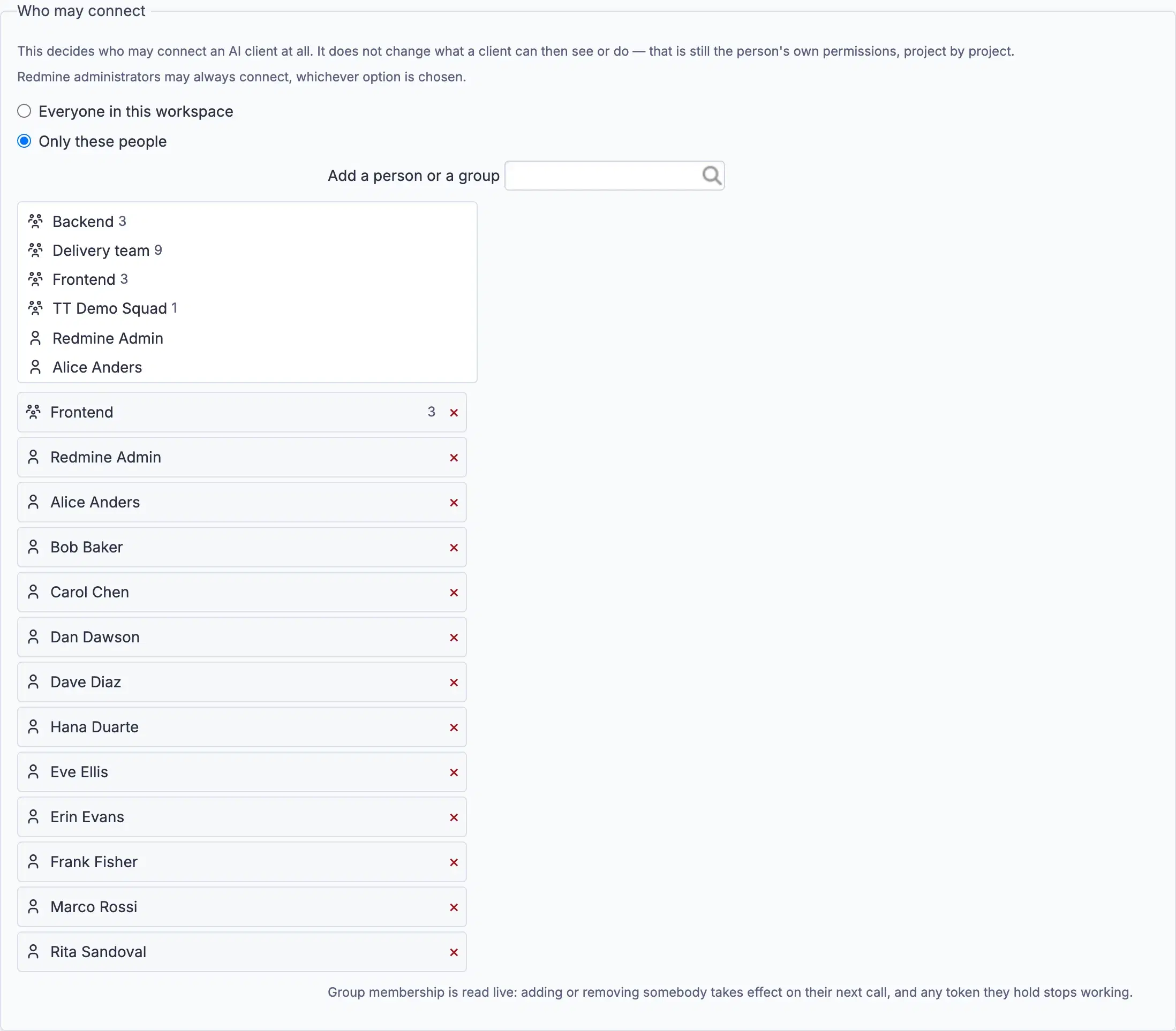
Who may connect
| Option | What it means |
|---|---|
Everyone in this workspace |
Every active account may connect a client |
Only these people |
Only the users and groups named below may |
A new workspace starts closed, Only these people, with nobody named. An
AI door should not open itself, so somebody has to be named before anybody can
connect.
Type to search, click to add, and use the × to remove. Both people and groups can be named, and group membership is read live: adding somebody to a named group lets them connect on their next call, and removing them stops it. Any token they already hold dies with it.
Redmine administrators may always connect, whichever option is chosen.
This decides whether somebody may connect at all, and nothing else. What a connected client can see or do is still that person's own permissions, project by project.
Settings
Administration → Plugins → RedminePRO MCP:
| Setting | Default | Effect |
|---|---|---|
Enable the MCP endpoint |
On | Off refuses every request |
Read-only mode |
Off | Every write tool disappears from the tool list and is refused if called anyway. Overrides the next setting |
Allow issue writes |
On | Creating issues, updating them and adding comments |
Allow suite tools |
On | The read-only tools contributed by other features, shown only when those are installed |
Requests per minute, per user |
120 | 0 turns the limit off. Counted per person |
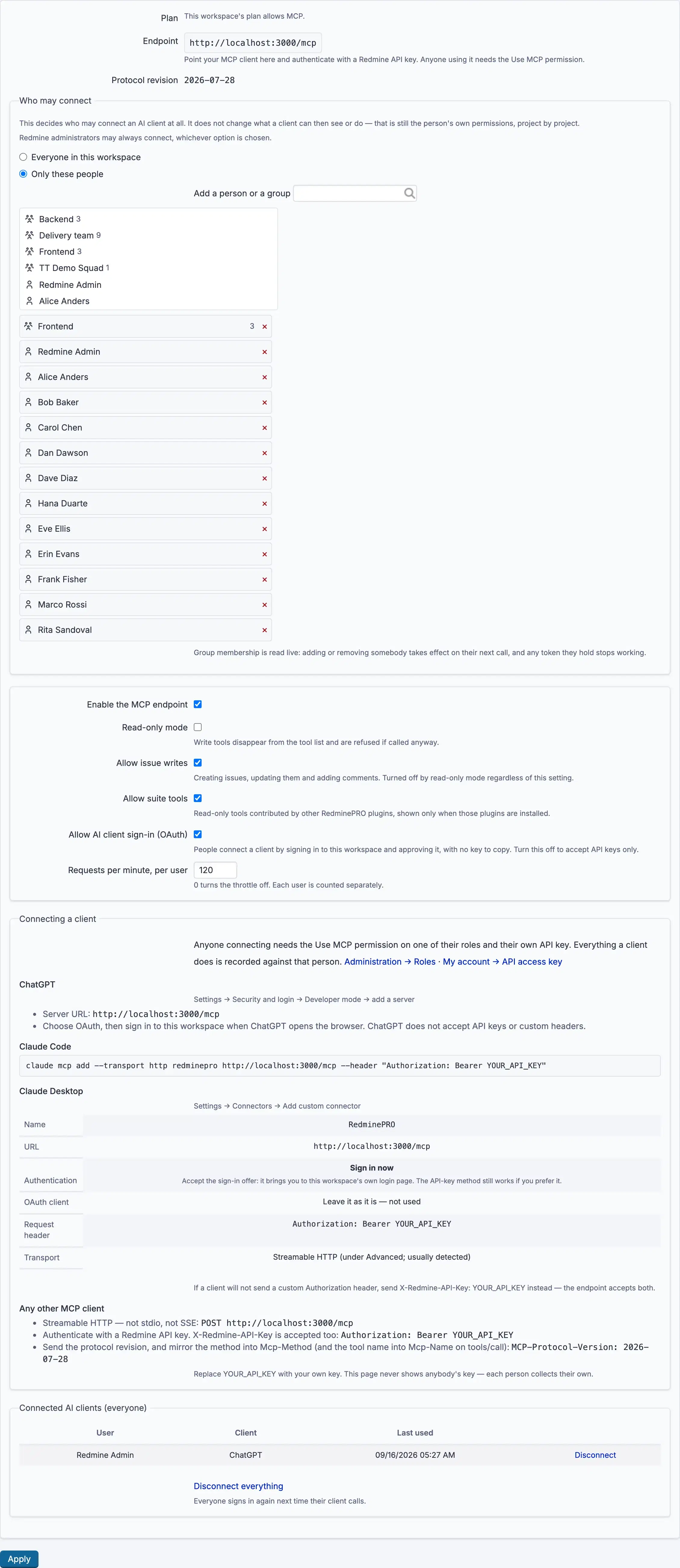
A switched-off tool vanishes from the tool list and is refused if called anyway, with the same answer an invented name gets. Hiding a tool the server would still run is a convention, not a control.
Using it
- Name the people or groups who may connect, under
Who may connect. - Each person opens
My account→API access key→Showand copies their key. It identifies them, and everything done through a client is recorded against their name. - They add the workspace to their client. See connecting an MCP client.
- Ask it something. "What are my open issues?" is answered from live data, filtered to what that person may see.
How people connect
Two ways, and both are supported.
Signing in is the one to prefer, and the only one ChatGPT accepts. Somebody adds your workspace to their client, the client opens your workspace's own login page, they approve it once, and no key is ever copied. If your workspace uses Google or Microsoft sign-in, that works here too, because it is the same login.
An API key in a header still works, is not deprecated, and is usually simpler for scripts and for terminal clients.
Allow AI client sign-in (OAuth) on the settings page controls the first. Turn
it off and the workspace accepts keys only. ChatGPT then cannot connect at all,
and the page says so rather than offering a recipe that will fail.
Who is connected, and disconnecting
Each person sees their own connected clients under My account, with a
Disconnect beside each. An administrator sees every connection in the workspace
at the bottom of the settings page, and can disconnect one or all of them.
Disconnecting takes effect on that client's next call; the person can connect
again, and will be asked to approve it again.
Connecting and disconnecting are recorded in the Audit Trail, where that feature is installed, with the person as the actor.
Reading logged time
A client can read hours that have already been logged, your own, or a project's,
and it sees exactly what the Spent time tab shows that person, because it
asks the same question Redmine does.
That depends on two things an administrator sets per role: the View spent time
permission, and the Time logs visibility dropdown beside it. Set to
All time entries, somebody sees everyone's hours on that project; set to
Time entries created by the user, only their own; without the permission at
all, none, and a client asking is told the project was not found rather than
that it has hours it may not read.
Ranges are capped at 92 days, and an answer cut short by the row limit says so in words rather than quietly returning less.
No client can log time. Reading hours and writing them are separate decisions, and only reading is available.
Assigning to a person
A client can name an assignee by login, by full name in either order, or by user id, whichever way round your workspace displays names. Nothing is matched half-way: a first name on its own, or a name two people share, is refused with the candidates listed rather than guessed at.
A client that does not know who is eligible can ask. The tool list includes one for reading the people an issue in a project can be assigned to, with their roles. It shows the same set as the assignee dropdown on the new-issue form, so it reveals nothing that form does not.
Writes land in the issue history exactly as a change made by hand does, attributed to the key's holder, including a field change with no note, which the web form also records. Nothing an agent does is invisible.
Not in this release, deliberately: no time logging, no timer control, no project creation, and no deletion of anything.
Troubleshooting
The client says it is unauthorized. The key is missing, wrong, or belongs to a locked account. Keys are per person; copying a colleague's is not a fix.
The client connects but every call is refused. One of three things, and the
message says which: the endpoint is switched off, the plan does not allow it, or
the account is not named under Who may connect, and on a new workspace
nobody is, until somebody is added.
Write tools are missing from the list. Read-only mode is on, or
Allow issue writes is off. Both also refuse the call directly.
Tools from another feature are missing. That feature is not installed, the
caller is not entitled to it, or Allow suite tools is off.
Too many requests. The per-person limit is in force and the answer says how
long to wait. Raise Requests per minute, per user, or set it to 0.
A change through a client did nothing but reported success. It should not, when a value is dropped because the workflow or field rules forbid it, the tool reports that as an error naming the legal alternatives rather than claiming a save.
Connecting Model Context Protocol clients
Any Model Context Protocol client can connect to your workspace over HTTPS with an ordinary Redmine API key. The client then works as you, with your exact permissions. Setting up the workspace side is covered on the MCP configuration page; this is the client half.
On RedminePRO Cloud
The feature is preinstalled and available on Plus and above. Start at the next section.
On your own Redmine
Install the feature first, see the MCP configuration page, then follow the same steps. The endpoint must be reachable over HTTPS, because your key travels on every request.
Before you start
- Permission to connect at all. An administrator names you, or a group you are
in, under
Who may connecton the MCP settings page, or opens it to everyone. Administrators may always connect. - Your own API key:
My account→API access key→Show. - Your workspace address. An administrator can read the exact endpoint off
Administration →
Plugins→ RedminePRO MCP, which also shows these same recipes with that address already in them.
Treat the key like a password. Anyone holding it can do through a client exactly what you can do, no more, but no less. Reset it from the same place if it is ever exposed.
Two ways to connect
Sign in. The client sends you to your workspace's login page, you approve it once, and there is no key to copy. ChatGPT accepts only this.
An API key in a header, still supported, not deprecated, and usually simpler for scripts and terminal clients. The rest of this page covers both; each recipe says which it uses.
On the external side
ChatGPT
ChatGPT accepts a sign-in or nothing: no API keys, no custom headers.
In ChatGPT: Settings → Security and login → Developer mode → add a server, give it
https://workspace.example.com/mcp, choose OAuth, and sign in to your workspace
when the browser opens. Approve the connection once and the tools appear.
If your administrator has switched AI client sign-in off, ChatGPT cannot connect to your workspace at all. That is a workspace setting, not something to work around in the client.
Claude Code
One command:
claude mcp add --transport http redminepro https://workspace.example.com/mcp --header "Authorization: Bearer YOUR_API_KEY"
Then /mcp inside Claude Code lists the tools.
Claude Desktop
Settings → Connectors → Add custom connector:
| Field | Value |
|---|---|
| Name | RedminePRO |
| URL | https://workspace.example.com/mcp |
| Authentication | No sign-in |
| OAuth client | Leave it as it is, not used |
| Request header | Authorization: Bearer YOUR_API_KEY |
| Transport | Streamable HTTP (under Advanced; usually detected) |
Authentication is the row people get wrong. The dialog may offer to sign you in and say it detected a provider. There is nothing to detect, your workspace authenticates with an API key in a header, not OAuth, and accepting the offer fails at sign-in. Choose no sign-in, and put the key in the header instead.
If a client will not send a custom Authorization header, send
X-Redmine-API-Key: YOUR_API_KEY instead. The endpoint accepts both.
Any other client
Configure a Streamable HTTP server, not the standard-input kind, and not the older event-stream kind:
- Endpoint:
POST https://workspace.example.com/mcp - Header:
Authorization: Bearer YOUR_API_KEY.X-Redmine-API-Keyis also accepted, because Redmine's own clients send it and somebody will try it. - Protocol revision
2026-07-28, sent as anMCP-Protocol-Versionheader and mirrored in the request body. The method goes inMcp-Method, and a tool call's name inMcp-Name.
A header that disagrees with the body is refused rather than guessed at. That disagreement is a routing attack, not a typo.
Verify it works
By hand, with curl:
curl -sS https://workspace.example.com/mcp \
  -H 'Content-Type: application/json' \
  -H 'Authorization: Bearer YOUR_API_KEY' \
  -H 'MCP-Protocol-Version: 2026-07-28' \
  -H 'Mcp-Method: tools/list' \
  -d '{
        "jsonrpc": "2.0",
        "id": 1,
        "method": "tools/list",
        "params": {
          "_meta": {
            "io.modelcontextprotocol/protocolVersion": "2026-07-28",
            "io.modelcontextprotocol/clientCapabilities": {}
          }
        }
      }'
A healthy workspace answers with the tool list. Then ask the client itself something, "what are my open issues?", and check the answer against what you see in the workspace. It should match exactly, because it is the same query under the same permissions.
Asking about logged time
"How many hours did I put on this project this week?" is answered from your own
logged time, which defaults to the current week. "Where did the team's time go
last month?" is answered per project, and only for the people you are allowed to
see, which is whatever the Spent time tab shows you, no more.
If your role is set to see only your own hours, that is what a client gets, even when it asks about somebody by name. If your role cannot see spent time at all, a client is told the project was not found.
Clients cannot log time. They read hours; they never write them.
Disconnecting a client
My account → Connected AI clients → Disconnect. It stops working on its
next call. You can connect it again later, and you will be asked to approve it
again. An administrator can also disconnect any client in the workspace.
Assigning work to someone
Ask the client to assign by login, by full name (either order. Your workspace's name-display setting does not matter), or by user id. If it does not know who is eligible, it can read the assignable people of a project, id, login, name and roles, from the tool list, which shows the same set as the assignee dropdown on the new-issue form.
Half a name is refused rather than guessed, and so is a name two people share: the refusal lists the candidates so the client can pick. That is deliberate. Work filed against the wrong person costs more than one more question.
What is stored
Nothing new. The endpoint keeps no session, no conversation and no copy of anything a client asked about. Each request is authenticated on its own.
Issues created or changed through a client are ordinary issues with ordinary history entries, attributed to the key's holder, including a field change with no note, exactly as the web form records one.
Each tool call is logged with the tool's name, the person, the response status and how long it took. The arguments and the results are never logged: a record of what an AI asked about would be a second copy of your workspace's data somewhere nobody audits.
Troubleshooting
| What you see | Why | What to do |
|---|---|---|
| 401 | The key is missing, wrong, or its account is locked | Copy the key again from My account; keys are per person |
| 403 | The endpoint is off, the plan does not allow it, or you are not on the access list | The message says which of the three |
| 429 | You passed the per-person rate limit | Wait the stated time, or ask for a higher limit |
| 404 | An unknown method, not an unknown tool | Check the client is sending a method this revision defines |
| 405 | The client used the wrong verb | The endpoint accepts POST only; this revision has no event stream |
| 400 with a header-mismatch error | A required mirror header is missing, or disagrees with the body | Send the method in Mcp-Method and the tool name in Mcp-Name |
| Write tools are missing | Read-only mode is on, or issue writes are switched off | An administrator controls both |
| Tools from other features are missing | That feature is not installed, you are not entitled to it, or suite tools are off | Check with an administrator |