

On this page
A Microsoft button on the sign-in page, tied to your own directory. People use the work account they already have, you stop managing passwords, and access ends when their directory account is disabled rather than when somebody remembers to lock them here. Only accounts in the directory you name can sign in.
Registering the application on Microsoft's side is covered in the Microsoft Entra integration guide.
On RedminePRO Cloud
Availability
Business and above.
Turn it on
Administration → Plugins → RedminePRO Microsoft Sign-In, then paste the
Directory (tenant) ID, Application (client) ID and Client secret from your
app registration. The button appears on the sign-in page once they are stored.
Permissions
None of its own. This decides how people prove who they are; what they may do afterwards is governed by their roles exactly as before.
Settings
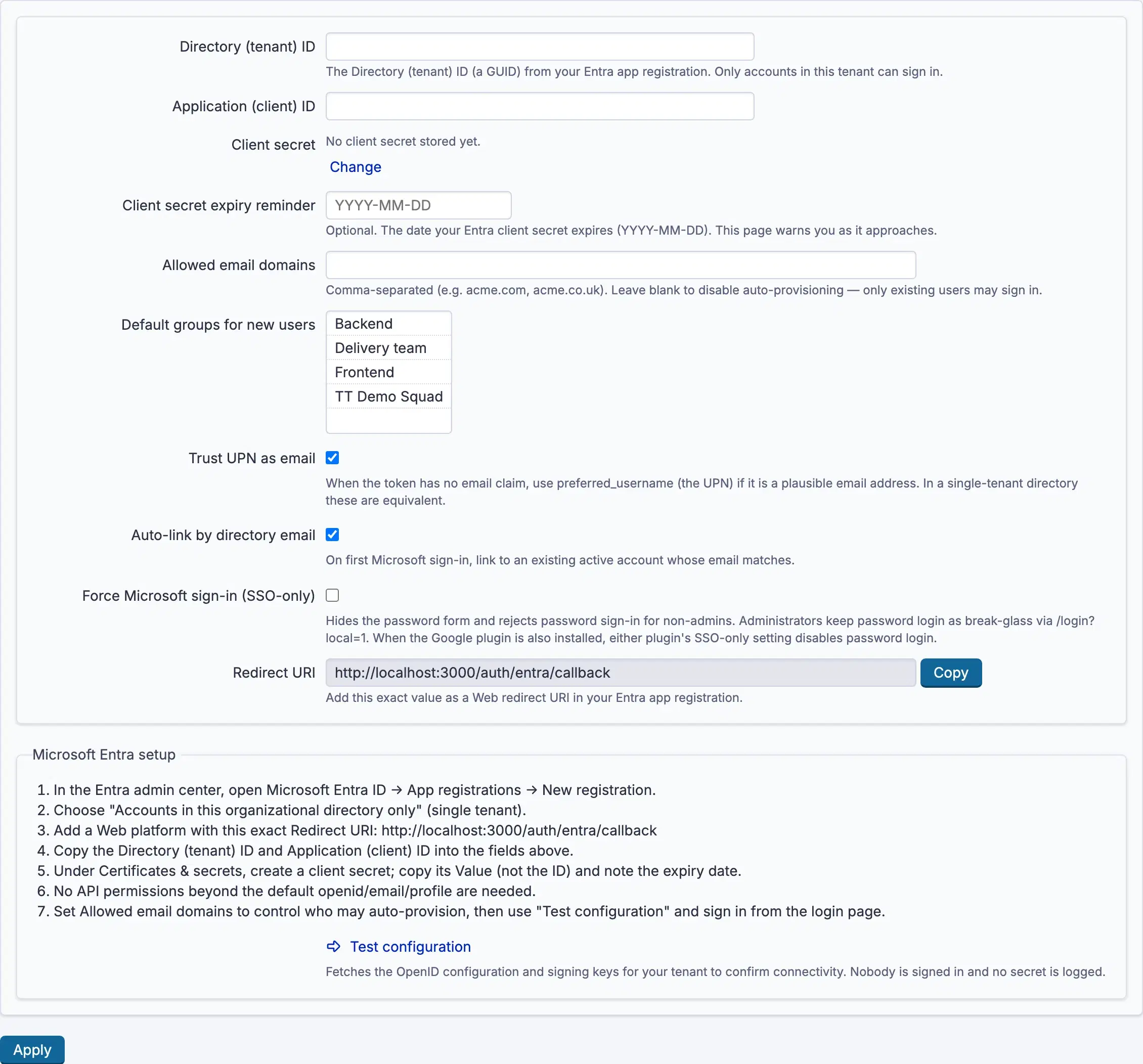
Administration → Plugins → RedminePRO Microsoft Sign-In:
| Setting | Default | Effect |
|---|---|---|
Directory (tenant) ID |
Blank | Your directory. Only accounts in it may sign in |
Application (client) ID |
Blank | From the app registration |
Client secret |
Blank | Stored encrypted; enter a new value to replace it, leave blank to keep |
Redirect URI |
Shown, not edited | Add this exact value to the registration |
Client secret expiry reminder |
Blank | The date the secret expires. The page warns you as it approaches |
Allowed email domains |
Blank | Comma-separated. Blank means no accounts are created automatically |
Auto-link by directory email |
On | On first sign-in, attach to an existing active account whose email matches |
Default groups for new users |
None | Groups an automatically created account joins |
Trust UPN as email |
Off | Use the sign-in name when the directory sends no email address |
Force Microsoft sign-in (SSO-only) |
Off | Hides the password form and refuses password sign-in |
Test configuration confirms connectivity by fetching your directory's
configuration and signing keys. Nobody is signed in by it and no secret is
logged.
Set Client secret expiry reminder when you create the secret. Directory
secrets expire, and an expired one takes sign-in down for everybody at a moment
nobody chose. This is the only warning you will get.
Allowed email domains blank is the safe default. Existing accounts work,
nothing new is created.
Before turning on Force Microsoft sign-in (SSO-only), sign in with
Microsoft yourself and confirm it works. Administrators keep a password route as
a break-glass path; everyone else loses theirs immediately. When Google Sign-In
is also installed, either feature's SSO-only setting disables password sign-in.
Using it
- A person opens the sign-in page and chooses the Microsoft button.
- The directory authenticates them, and approval is asked once.
- They arrive signed in, attached to their existing account if
Auto-link by directory emailmatched one, otherwise newly created if their domain is listed.
Troubleshooting
The directory reports a redirect mismatch. The value in the registration
differs from Redirect URI on the settings page, which shows the exact string
to add. It must be registered as a web redirect, not another kind.
Sign-in worked yesterday and fails today. The Client secret has expired.
Create a new one in the registration, paste it here, and set
Client secret expiry reminder this time.
Somebody outside the organisation cannot sign in. By design, only accounts
in the directory named by Directory (tenant) ID may.
An account was created without an email address. The directory sent no email
claim. Turn on Trust UPN as email so the sign-in name is used when it looks
like an address.
Nobody can sign in after enabling SSO-only. Administrators keep a password route as a break-glass path; use it and turn the setting off.
Connecting Microsoft Entra ID
You register one application in your directory and paste three values into the workspace. The workspace shows you the exact redirect address to register. Nothing is asked of the directory beyond identity, and only accounts in the directory you name can sign in.
On RedminePRO Cloud
The feature is preinstalled. Start at the next section.
On your own Redmine
Install the feature first, see the Microsoft Sign-In configuration page, then follow the same steps. Your workspace must be reachable over HTTPS at a hostname the directory can redirect back to.
Before you start
- An administrator account on the workspace.
- Rights to register an application in your directory.
- Your directory identifier to hand.
- Decide which email domains, if any, should get accounts created automatically.
On the external side
- In the workspace, open Administration →
Plugins→ RedminePRO Microsoft Sign-In and copy theRedirect URIshown there. - In the Microsoft Entra admin centre, register a new application.
- Choose the supported account types. Accounts in this organizational directory only is the right choice unless you have a reason otherwise. It is what makes the directory the boundary.
- Add the address from step 1 as a Web redirect address. It must be the web platform specifically, and it must match exactly.
- Create a client secret. Note its expiry date now. You will need it in a moment, and it is the single most common cause of sign-in breaking months later.
- Copy the directory identifier and the application identifier from the application's overview.
No API permissions beyond the default sign-in and profile reading are needed.
In RedminePRO
- Administration →
Plugins→ RedminePRO Microsoft Sign-In. - Paste the
Directory (tenant) ID, theApplication (client) IDand theClient secret, then save. The secret is stored encrypted and never displayed again. - Set
Client secret expiry reminderto the date from step 5. The page warns you as it approaches. This is the only warning you will get, and without it an expired secret takes sign-in down for everybody at a moment nobody chose. - Press
Test configuration. It fetches your directory's configuration and signing keys to prove connectivity. Nobody is signed in by it and no secret is logged. - Set
Allowed email domainsif you want accounts created automatically. Blank is the safe default. - Turn on
Trust UPN as emailonly if your directory does not send an email claim. - Leave
Force Microsoft sign-in (SSO-only)off until you have signed in with Microsoft yourself.
Verify it works
Sign out, open the sign-in page, and use the Microsoft button with your own work
account. You should arrive signed in as your existing account rather than a new
one. That is Auto-link by directory email doing its job.
Have one other person try before enabling SSO-only. When Google Sign-In is also installed, either feature's SSO-only setting removes the password form, so check both before concluding which one did it.
What is stored
The directory and application identifiers, and the client secret encrypted at rest and never logged. Against each account, the directory identity it is linked to, and the expiry date you entered.
Nothing else. No directory password reaches the workspace, no token is kept after sign-in, and no directory data beyond the person's identity and email is requested or stored.
Troubleshooting
| What you see | Why | What to do |
|---|---|---|
| The directory reports a redirect mismatch | The registered address differs, or was added under the wrong platform | Re-copy Redirect URI and add it as a Web redirect |
| It worked yesterday, not today | The Client secret expired |
Create a new secret, paste it, and set Client secret expiry reminder |
| Someone outside the organisation cannot sign in | By design | Only accounts in Directory (tenant) ID may |
| An account has no email address | The directory sent no email claim | Turn on Trust UPN as email |
| Nobody can sign in after SSO-only | Expected for non-administrators if sign-in is broken | Use the administrator password route, then turn SSO-only off |