

A notice at the top of the page: planned maintenance on Saturday, a release
going out, a process changing on Monday. One Global banner for the whole
workspace, plus a Project banner per project for things only that team needs
to read. Each has a severity style, a schedule, and a choice about whether
people may dismiss it.
On RedminePRO Cloud
Availability
Business and above.
Turn it on
The workspace-wide notice is at Administration → Banner and needs no module.
For a per-project notice: Project → Settings → Modules → tick Banner. A
Banner entry then appears in the project menu for whoever holds the permission
below.
Permissions
Administration → Roles and permissions, in the Banner section:
| Permission | What it grants |
|---|---|
Manage the project banner |
Write, schedule and remove that project's banner |
The Global banner is administrators only. It is seen by everybody, so it is
not a per-project right.
Settings
Administration → Plugins → RedminePRO Banner:
| Setting | Default | Effect |
|---|---|---|
Allow images in banner text |
Off | Off keeps banner text to formatted text only. On permits images |
Leave it off unless you need it. A banner is displayed to everyone, so widening what its text may contain widens what anyone who can write one can put in front of the whole workspace.
Using it
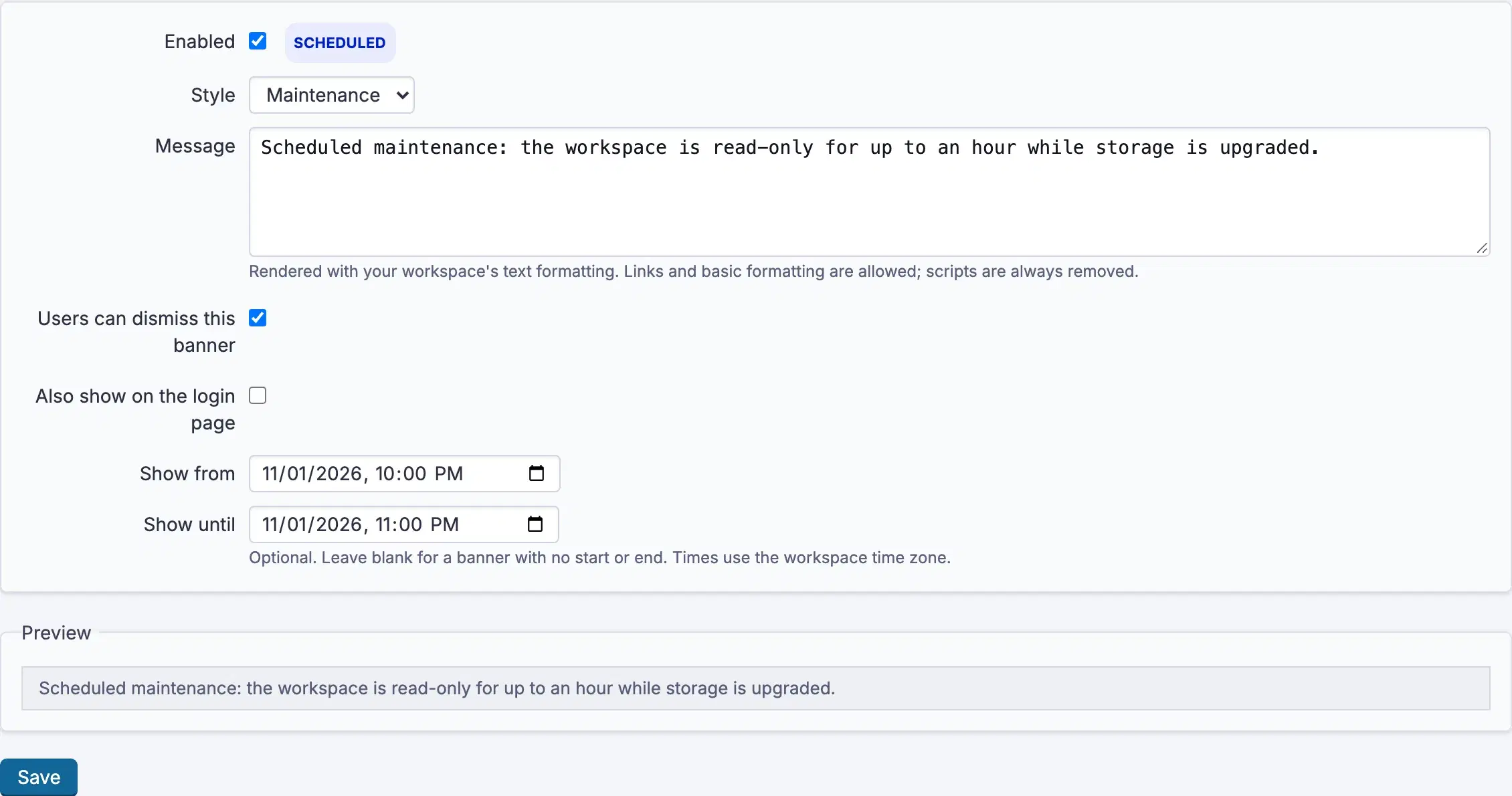
- Open Administration →
Banner, or a project'sBannerpage. - Write the
Messageand pick aStyle:Info,Warning,CriticalorMaintenance. - Choose
Display onfor a project banner,Overview page only,Overview + new issue page, orAll project pages. - Set
Show fromandShow untilif it should appear and disappear on its own. Both are a date and a time. Leave them empty for a notice you will turn off by hand. - Tick
Users can dismiss this bannerif it is an announcement rather than a standing warning. A dismissal is remembered per person. Also show on the login pageputs a workspace-wide notice in front of people before they sign in, the right choice for planned downtime.Enabledis the on switch.Previewshows exactly how it will render.
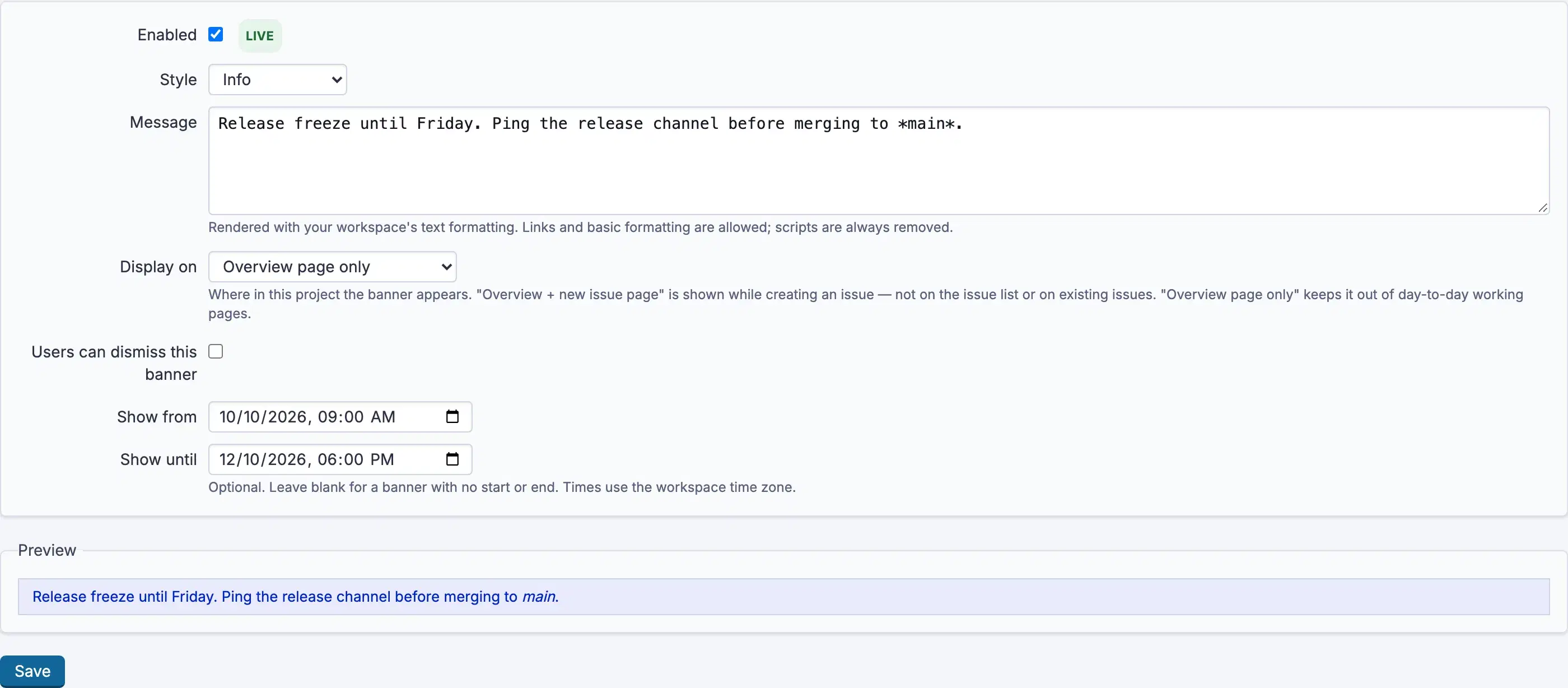
The status beside each banner reads Live, Scheduled, Expired or Off, so
you can tell at a glance why something is or is not showing.
Troubleshooting
The banner is not showing. Check the status. Off means Enabled is
unticked; Scheduled means Show from has not arrived; Expired means
Show until has passed.
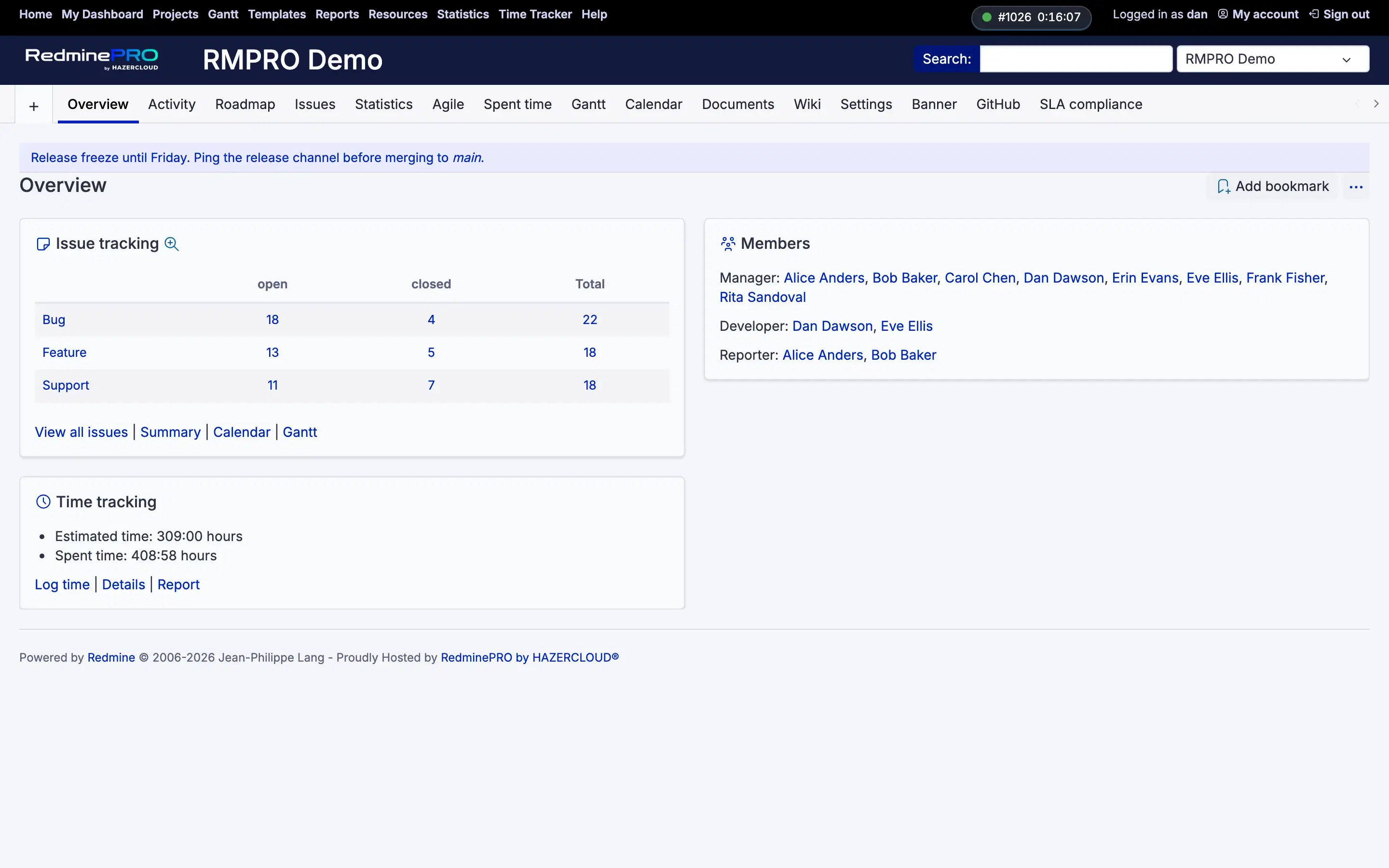
It is showing on the wrong pages. Display on controls that for a project
banner. Overview page only is the default and the quietest choice.
Someone cannot see it and everyone else can. They dismissed it. A dismissal
is per person and permanent for that banner, which is why
Users can dismiss this banner should be off for anything people must keep
seeing.
No Banner entry in the project menu. Either the module is off for that
project, or the account lacks Manage the project banner.
An image will not render. Allow images in banner text is off. Turn it on
knowing that it widens what anyone able to write a banner can display to
everyone.
The times look wrong. Show from and Show until follow the workspace's
time zone, not the reader's.