

Announcement banners for Redmine: one global banner set by an administrator and one banner per project managed by the project team.
Global and per-project notices, with scheduling. Maintenance windows, process changes and deadlines appear where the work is rather than in an email sent to everyone at once and read by a third of them. Scheduling matters because the useful time to publish a notice is rarely the time somebody happens to be at their desk to write it. A notice can be written when it is known and shown when it is relevant, which is rarely the same moment.
Some things everyone in a workspace needs to know: planned maintenance on Saturday, a release going out, a process changing on Monday. Other things matter to one project team only, and matter most at the moment someone in that team is about to file a report.
An announcement banner puts the message at the top of the page people already have open. There is one banner for the whole workspace, set by an administrator, and one for each project, managed by that project's team. Both can be active at once, so a workspace notice about maintenance and a project notice about a release freeze sit together without either one replacing the other.
Each banner carries a severity style, an optional schedule and a choice about whether people may dismiss it. That is the whole model, and it is deliberately small.
The two levels sit in different places because they say different things. The workspace banner is a bar at the very top of the page, above the header. It is the place for a notice everyone should read, and it shows on every page by definition.
A workspace banner can also be put on the login page, with the Also show on the login page option on that banner. That places the notice in front of people before they sign in, which suits planned maintenance. A project banner has no such option, because a project notice has no meaning before sign-in.
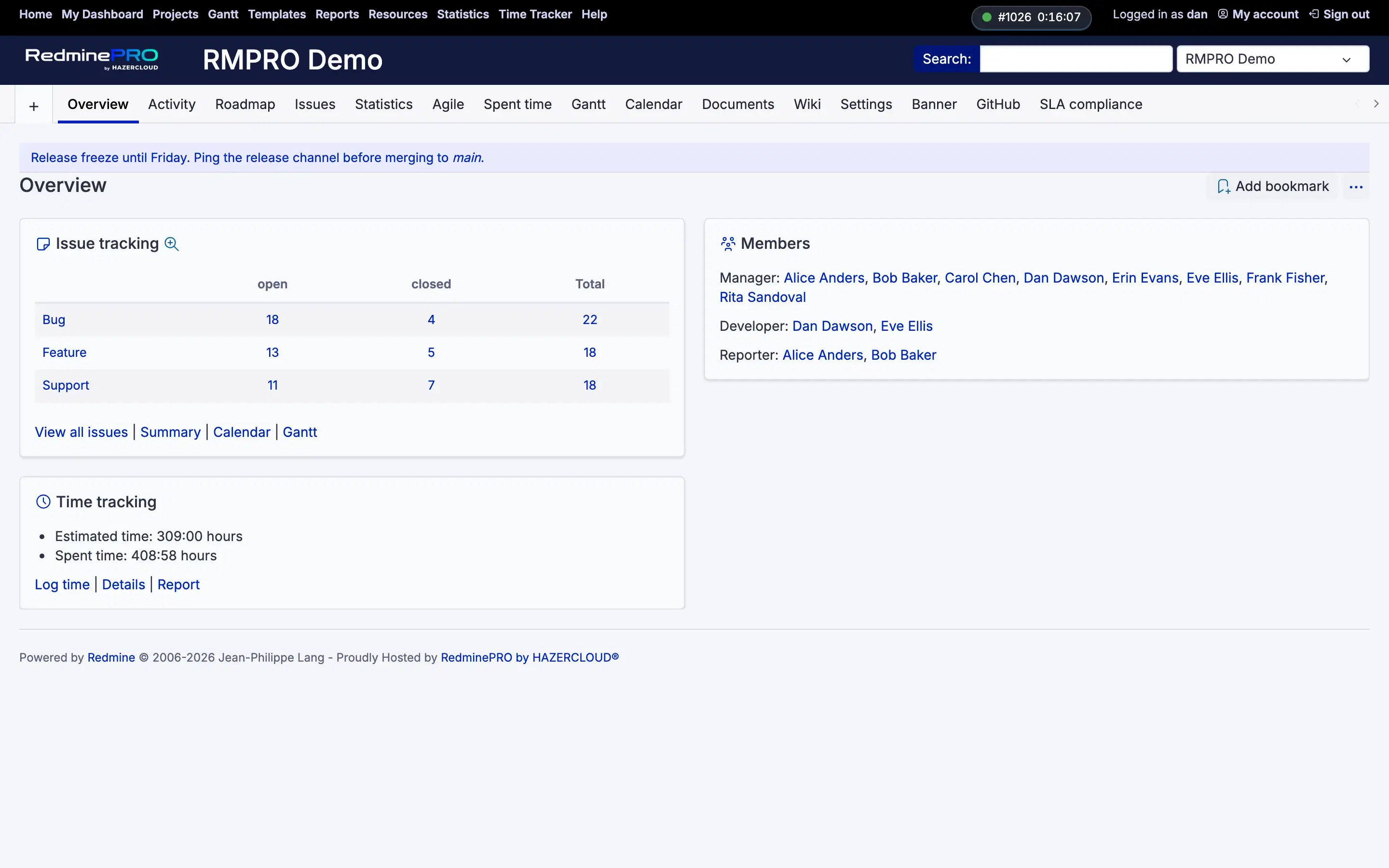
A project banner sits inside the project, directly below the project menu tabs and above the page heading, spanning the content column. Its Display on setting decides which pages it follows people onto. Overview page only is the default and shows it on the project overview alone. Overview + new issue page shows it on the overview and on the new issue form, including the form as it is shown again after a validation error, but not on the issue list and not on existing issues. All project pages shows it everywhere within the project.
Keeping the default narrows a notice to the page people visit deliberately, rather than following them through every issue they open. The middle option is for guidance aimed at whoever is filing a report, such as a reminder to include steps to reproduce or to attach logs. That is why it appears while the form is open and nowhere else.
Every notice has one of four styles: Info, Warning, Critical or Maintenance. Their colours are self-contained, so they read correctly on the stock Redmine theme as well as on the RedminePRO themes. A Critical banner is announced to screen readers as an alert. The other three are announced politely, without interrupting what the reader is doing.
The message is rich text. It renders through the workspace's configured text formatting, with Redmine's standard sanitizer. Macros are always neutralised, so a banner never expands one, and images are stripped unless an administrator has allowed them. Preview shows exactly how a notice will render before anyone else sees it.
Scheduling is optional. Show from and Show until each take a date and a time, and both follow the workspace's time zone rather than the reader's. Outside that window the banner hides itself, so a notice with both set takes itself down afterwards, with nobody needing to remember to remove it. Leave both empty for a notice you will turn off by hand. An expired banner stays in the form, ready to reuse the next time the same kind of notice comes round.
Enabled is the on switch. Beside each banner a status reads Live, Scheduled, Expired or Off, so you can tell at a glance why a notice is or is not showing. Off means Enabled is unticked. Scheduled means the Show from time has not arrived. Expired means the Show until time has passed.
The workspace banner is for administrators only, on the Banner page in Administration. It is seen by everybody, so it is not a per-project right, and it needs no module.
Project banners are a project module. Switch on Banner in a project's modules and grant the permission below to the roles that should manage it. A Banner entry then appears in the project menu, next to Settings, for whoever holds it. The module has to be on both for a project banner to be managed and for it to be displayed.
| Who | Can |
|---|---|
| Administrator | Edit the workspace banner and the feature's settings |
| A role with Manage the project banner | Write, schedule and remove the banner of a project where the Banner module is on |
| Everyone | See the banners that apply to them, and dismiss the ones that allow it |
Dismissal is chosen per banner with Users can dismiss this banner, and it is on by default. When it is on, a reader can close the notice, and that dismissal is remembered for the person across sessions. Visitors who are not signed in keep a dismissal for their session only. With dismissal off, the banner shows no close control and ignores any dismissal stored earlier. Turn it on for an announcement, and leave it off for anything people must keep seeing, such as a standing warning.
One setting governs what a banner may contain, and an administrator controls it.
| Setting | Default | Effect |
|---|---|---|
| Allow images in banner text | Off | Off keeps banner text to formatted text only. On permits images. |
Leave it off unless you need it. A banner is displayed to everyone, so widening what its text may contain widens what anyone able to write one can put in front of the whole workspace. Remote images on every page are also a tracking and layout risk.
A banner also stays light on every page it touches. The lookup each page makes is two cached reads, refreshed whenever a banner is saved. With no active banner, a warm cache adds no database queries at all.
There is exactly one workspace banner and one banner per project. Each is edited in place, and earlier versions of a message are not kept. Banner data lives in two tables of its own, and Redmine's core tables are not modified at any point.
On your own Redmine, removing the plugin drops those two tables. Every banner goes with them, and nothing else is affected.
Announcement Banners is on the Business and Enterprise plans. Startup and Plus do not include it. Every plan keeps full Redmine administrator access.
See what each plan includes, or look at the rest of what RedminePRO adds to Redmine.
Set-up and permissions: Banner in the Knowledge Base. Install it on your own Redmine.
7-day trial on any plan. Full Redmine administrator access from the first day.