

Click an attachment's filename and it opens in a modal lightbox right on the page.
Open an attachment in the browser instead of downloading it to look at it. On an issue with a dozen screenshots, that is the difference between scanning the thread and filling a downloads folder with files named image-3.png. Nothing leaves the workspace to be viewed, which also means nothing has to be cleaned up afterwards. Reviewing a design or a bug report becomes reading one page rather than opening a folder alongside it.
Without a preview, looking at an attachment means downloading it. Every screenshot on every ticket costs the same cycle: download it, open it, then delete it again.
Attachment Preview removes that cycle for images, PDFs and text. Click an attachment's name and it opens in a popup on the page. Images, PDFs and text appear immediately. Everything else downloads exactly as it did before, so archives, programs and office documents behave as they always have.
On RedminePRO Cloud there is nothing to turn on. It applies wherever attachments already appear, for everyone who can already see them.
The attachment's filename opens the popup. A small download icon next to each previewable file keeps one-click download, so saving a file is still a single click when that is what you want. Inside the popup, Download attachment saves the file as normal.
When a page has several previewable attachments, the popup works as a gallery. Arrows on either side, and the left and right arrow keys, step between them without closing it, and a counter shows which attachment you are on out of how many. The gallery cycles across mixed types, so the images, PDFs and text files on one page sit in a single sequence.
It behaves the same way everywhere attachments appear: on issues, wiki pages, documents, the files module, forums and news. The popup is marked up as a dialog, keeps keyboard focus inside itself while it is open, and returns focus to where you were when it closes. Escape, a click on the backdrop or the close button closes it. Its styling is self-contained and sits comfortably with the stock theme and the RedminePRO themes.
Images in jpg, jpeg, png, gif and webp open as pictures in the popup. A PDF opens in the browser's own viewer, inside the popup, with no external library involved. Plain text in txt files opens as text. Images and PDFs are always previewable, whatever the settings say.
An extended family of text formats is on by default. Markdown files are rendered, through Redmine's own sanitizing CommonMark pipeline. A csv file is shown as a table of its first 500 rows, with every cell escaped. Log, json, xml and yml files are shown as plain, escaped text, up to the size cap.
Anything that is not on the active list of previewable types is left alone. A zip file, a program or an office document downloads exactly as before, and the page never intercepts the click on it.
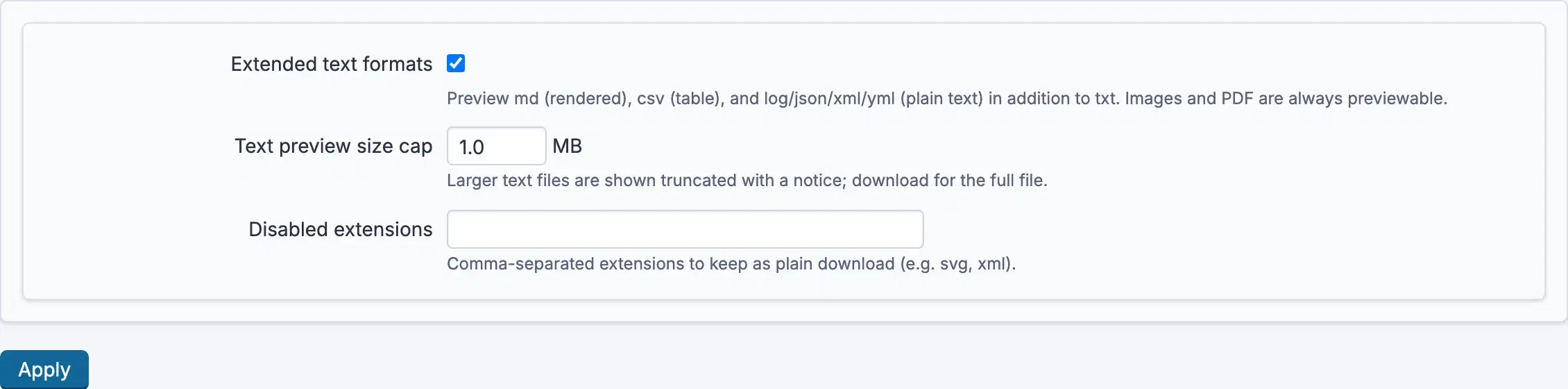
An administrator controls three settings, which apply across the whole workspace.
| Setting | Default | Effect |
|---|---|---|
| Extended text formats | On | Adds rendered markdown, csv as a table, and plain log, json, xml and yml text to the basic plain-text support |
| Text preview size cap | 1 MB | Text larger than this is shown truncated with a notice. Download for the whole file. |
| Disabled extensions | Blank | A list of extensions to leave as an ordinary download |
With Extended text formats off, the basic plain-text support remains, and images and PDFs still preview.
The size cap is enforced on the server, not just in the browser. When a text file is cut short, the notice says so, and downloading it gets the whole file. If your workspace routinely attaches bigger text files, raise the cap. A large spreadsheet is a separate limit: only its first 500 rows are tabulated, and the rest is a download away.
Disabled extensions is the escape hatch when a file type is better downloaded than skimmed in your workspace. The settings screen gives svg and xml as examples. When an attachment downloads instead of opening, either its type does not preview or its extension is on that list.
Attachment Preview has no permissions of its own. An attachment is previewable exactly when the reader may download it. The popup is a way of looking at a file, not a way of reaching one.
Underneath, the preview reuses Redmine's own read authorization for attachments. A user who cannot download an attachment can never preview it, and a refusal looks the same as it would for a download. Tests enforce this. Files outside the active list of previewable types get a not found response from the preview endpoints. Preview responses carry a content type from an allowlist and tell the browser not to guess a different one.
Vector images and web pages, svg and html, are shown as escaped text and never rendered. Both can carry active content, and rendering somebody's uploaded file inside your workspace is a way to run their code in your reader's browser. They are served as plain text, readable in the popup but not executed. That is deliberate and not configurable. To see a vector image as a picture, download it and open it in a viewer of your choosing.
The same care applies to everything else. Markdown goes through Redmine's sanitizing pipeline, csv cells are escaped, and text is always escaped. No file content is ever run as code or inserted into the page as raw HTML.
Attachment Preview has no tables of its own. It never stored or converted a file, it only displayed one, so every attachment is untouched whether it is there or not.
On your own Redmine, the plugin works identically, with no plan gate and no module, and removing its directory and restarting Redmine returns attachment links to stock behaviour immediately, because the enhancement is applied in the browser at runtime.
Attachment Preview is on every plan, from Startup. Every plan keeps full Redmine administrator access.
See what each plan includes, or look at the rest of what RedminePRO adds to Redmine.
Set-up and permissions: Preview in the Knowledge Base. Install it on your own Redmine.
7-day trial on any plan. Full Redmine administrator access from the first day.