

On this page
Commits and pull requests that mention an issue appear on that issue, live. A
GitHub panel lists linked commits and pull-request cards with their state,
review summary and checks; merges can add a history note, and pull-request
conversation can be mirrored onto the ticket. It is driven by webhooks from a
GitHub App you create and own, reads only, and stores metadata, a commit
message's first line, a pull-request title and state, never code or diffs.
Connecting the external side is covered separately in the GitHub integration guide.
On RedminePRO Cloud
Availability
Business and above.
Turn it on
Per project: Project → Settings → Modules → tick GitHub. Then connect
repositories on the project's GitHub page. The App itself is set up once for
the whole workspace at Administration → GitHub.
Permissions
Administration → Roles and permissions, in the GitHub section of the role
form:
| Permission | What it grants |
|---|---|
Manage GitHub repositories |
Connect and disconnect repositories for the project, and Sync now |
The panel on an issue is visible to anyone who can see the issue. Linking is a property of the work, not a separate thing to be granted.
Settings
Administration → Plugins → RedminePRO GitHub:
| Setting | Default | Effect |
|---|---|---|
Add a journal note when a pull request is merged |
On | A merge writes a history entry on every linked issue |
Mirror GitHub comments onto linked tickets |
On | Pull-request and review comments are copied onto linked issues. One way. Nothing is ever posted back |
Match authors by email |
On | When no login is mapped, attribute activity by the commit's email address |
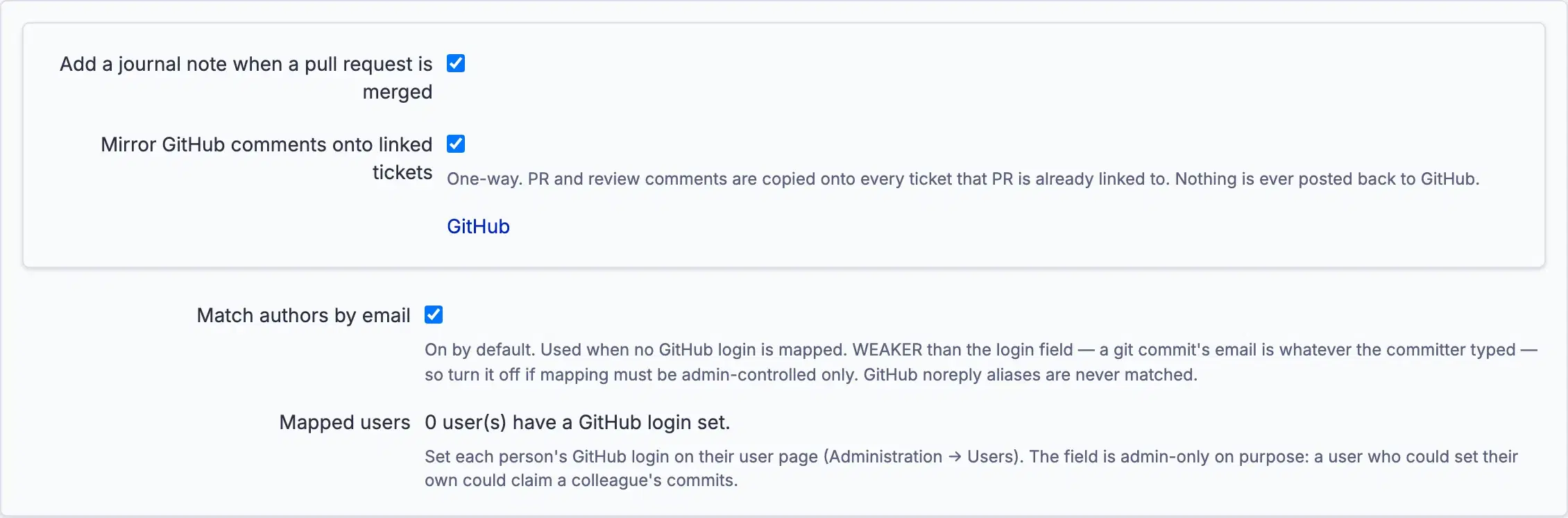
Match authors by email is deliberately weaker than an explicit mapping: a
commit's email is whatever the committer typed. Turn it off where attribution
must be administrator-controlled. Addresses that GitHub issues for privacy are
never matched.
Using it
- Enable the module on the project.
- Open the project's
GitHubpage and useAdd a repository, thenConnect. Only repositories the App can already see are offered. Sync nowbackfills recent pull requests so the panel is not empty on day one.- Reference an issue from your work. A commit message containing the issue number, or a branch with the number as a segment, links it.
- Open the issue.
CommitsandPull requestsappear with each card's state,Open,Draft,MergedorClosed, andRefreshre-reads from GitHub on demand.

References resolve only inside the projects a repository is connected to, so connecting a repository is what decides where its activity may appear.
Troubleshooting
Nothing appears on the issue. Either the repository is not connected to that
issue's project, or the reference was not recognised. Connect it on the
project's GitHub page; write the issue number preceded by a hash as a whole
word, or paste the full issue address. A branch links through a numeric segment
in its name.
Deliveries show 401 in GitHub. The webhook secret in the workspace does not
match the App's. Regenerate it at Administration → GitHub, save, then update
the App to match. Signatures are checked in constant time against this value.
Deliveries show 503. No Webhook secret is set. A missing secret is treated
as a misconfiguration and never as a silent success.
GitHub rate limit reached — try again in a few minutes. GitHub's budget
for that installation is spent.
Wait a few minutes. The integration never calls the API while processing a
webhook, only on Test connection, Load installations from GitHub,
Sync now and the panel's Refresh.
The private key is not a valid PEM. The pasted key is truncated or is not
the file GitHub gave you. Paste it whole, including its first and last lines.
GitHub rejected the App JWT — check the App ID and that the private key matches this App. The two belong to different Apps.
The repository picker is empty. The page says which of the three causes applies: the App is not configured, its installations have not been loaded yet, or it has access to no repositories. Grant it repository access on the GitHub organization, then load installations again.
Connecting GitHub
You create one GitHub App and install it on each organization whose repositories you want to link. The workspace shows you every value the App needs, the webhook address, a generated secret, and a ready-to-paste manifest, so nothing has to be typed twice. No personal access tokens are involved, and the App asks for read permissions only.
On RedminePRO Cloud
The feature is preinstalled. Start at the next section.
On your own Redmine
Install the feature first, see the GitHub configuration page, then follow the same steps. Your workspace must be reachable from GitHub over HTTPS, or no delivery will ever arrive.
Before you start
- An administrator account on the workspace.
- Owner rights on the GitHub organization, since creating and installing an App is an owner action.
- Decide which organizations are in scope. One App can serve several.
On the external side
- In the workspace, open Administration →
GitHub. PressGeneratebesideWebhook secret, then save. This stores the secret so incoming deliveries can be verified. Copy theWebhook URLshown. - In GitHub, go to your organization → Settings → Developer settings → GitHub
Apps → New GitHub App → from a manifest, and paste the
App manifestblock the workspace displays. It pre-fills the read-only permissions, the events, and the webhook address and secret from step 1. - Set the App to be installable on Any account, not only yours. This is what lets one App serve several organizations by address without being listed publicly.
- Create the App. GitHub then shows its
App IDand offers to generate a private key. Generate it and keep the downloaded file. - On the App's page, choose Install App and pick the organization and the repositories it may see. Repeat for each further organization by opening the same install address.
The App requests these, and nothing else. Every one is read-only; the integration never writes to GitHub.
| Kind | Value | Why |
|---|---|---|
| Permission | contents: read |
Read commit messages on push |
| Permission | pull_requests: read |
Pull-request titles and state |
| Permission | metadata: read |
List the repositories an installation can see |
| Event | push |
Link commits that reference an issue |
| Event | pull_request |
Create and update pull-request cards |
| Event | pull_request_review |
Review summary |
| Event | check_suite |
Checks summary |
| Event | issue_comment |
Mirror conversation onto linked issues |
| Event | pull_request_review_comment |
Mirror inline review comments |
In RedminePRO
- Administration →
GitHub: paste theApp IDand thePrivate key (PEM), then save. The key is stored encrypted and shown masked afterwards; leaving the field blank keeps the existing one. - Press
Test connection. It reports whether the credentials and permissions are valid, and names anything missing so you can add it on the App and re-approve it on each organization. - Press
Load installations from GitHub. This reads which organizations the App is installed on and caches them so projects can pick repositories. Nothing is removed by it. - On a project with the
GitHubmodule enabled, open itsGitHubpage,Add a repository, andConnect. ThenSync nowto backfill recent pull requests.
The App slug field is optional. It is the address fragment of your App, used
to build install links.
Verify it works
Push a commit whose message contains an issue number preceded by a hash, to a
connected repository. Within seconds the GitHub panel on that issue lists the
commit. If it does not, open the App's Recent Deliveries on GitHub: a delivery
listed there with a success response means GitHub is reaching you and the
problem is the reference or the repository mapping; no delivery at all means the
webhook address or the App installation is wrong.
Webhook deliveries on Administration → GitHub shows the same story from this
side.
What is stored
Metadata only, never code. A commit's first message line, its author and identifier; a pull request's title, number, state, review summary and checks summary; and, when mirroring is on, the text of pull-request comments. Diffs, file contents and source code are never fetched or stored.
The App's private key and the webhook secret are encrypted at rest, masked in the interface, and never written to a log. Incoming deliveries are authenticated by signature in constant time and de-duplicated by their identifier, so a replayed delivery changes nothing. Issue references resolve only inside the projects a repository is connected to.
Troubleshooting
| What you see | Why | What to do |
|---|---|---|
| Deliveries return 401 | The secret in the workspace and the one on the App differ | Regenerate at Administration → GitHub, save, then update the App to match |
| Deliveries return 503 | No Webhook secret is set |
Set and save one. A missing secret is a misconfiguration, never a silent success |
| Cannot install on a second organization | The App is limited to one account | Set its installability to Any account, then open its install address for each organization |
Set the App ID and private key first. |
Test connection ran before both were saved |
Save both, then test again |
The private key is not a valid PEM. |
The pasted key is truncated or the wrong file | Paste the downloaded key whole, including its first and last lines |
GitHub rejected the App JWT — check the App ID and that the private key matches this App. |
The identifier and the key belong to different Apps | Confirm the identifier and download that App's key again |
No installations found yet. Install the App on a GitHub organization, then refresh. |
The App exists but is installed nowhere | Install it, then load installations again |