

Point Claude Desktop, Claude Code, Cursor or any Model Context Protocol client at your workspace, and it can search, read, create, update and comment on issues as a real person, with that person's exact permissions.
Turn your workspace into an MCP server so Claude or any Model Context Protocol client can work on issues as a real person. Point Claude Desktop, Claude Code, Cursor or any MCP client at your workspace and it can search, read, create, update and comment on issues, with that person's exact permissions. Every read goes through the same visibility rules the web interface uses and every write through the same workflow and field rules, with the owner of the API key as the actor. The feature adds one capability, whether you may connect a client at all. It never widens what is behind it.
Connect an AI client to your tracker and one question comes first. May it see this issue? Here the answer is one you already have. May this AI see this issue is exactly the question may that person see this issue. Nothing more, and nothing new to keep in step.
The owner of the key is the actor for the whole request. A change made by a client is indistinguishable from the same change made by hand, and a test asserts exactly that.
Your workspace answers at its own address, ending in /mcp. The settings page shows that address, and its Connecting a client section carries the setup recipes for ChatGPT, Claude Code, Claude Desktop and any other MCP client, already filled in with your workspace's endpoint. It never shows anybody's API key.
There are two ways in, and both are supported. Signing in is the one to prefer. The client opens your workspace's own login page, the person approves it once, and no key is ever copied. ChatGPT accepts only this way, so if an administrator switches AI client sign-in off, ChatGPT cannot connect at all.
An API key in a header still works and is not deprecated. It is usually simpler for scripts and terminal clients such as Claude Code. Each person collects their own from My account, under API access key. It is an ordinary Redmine API key. It identifies them, and everything done through a client is recorded against their name. Treat it like a password. Anyone holding it can do through a client exactly what its owner can do, no more, but no less.
A connected client can search issues by project, status and free text, read one issue in full with its recent history, and list a person's own open issues. It can read projects, versions and wiki pages. It can create issues, update them and add comments. A comment notifies watchers exactly as the web form does.
Writes take the same path the web form takes, so workflow rules, field permissions, required fields, the history and the notifications are all Redmine's own. Where Redmine would quietly drop a change, such as a status the workflow forbids, the tool reports an error naming the legal alternatives rather than claiming a save.
A client can read hours already logged, the person's own or a project's, and it sees exactly what the Spent time tab shows that person. Ranges are capped at 92 days. An answer cut short says so in words rather than quietly returning less.
Some things are left out deliberately. No client can log time, control a timer, create a project or delete anything, and a test asserts each of those is absent.
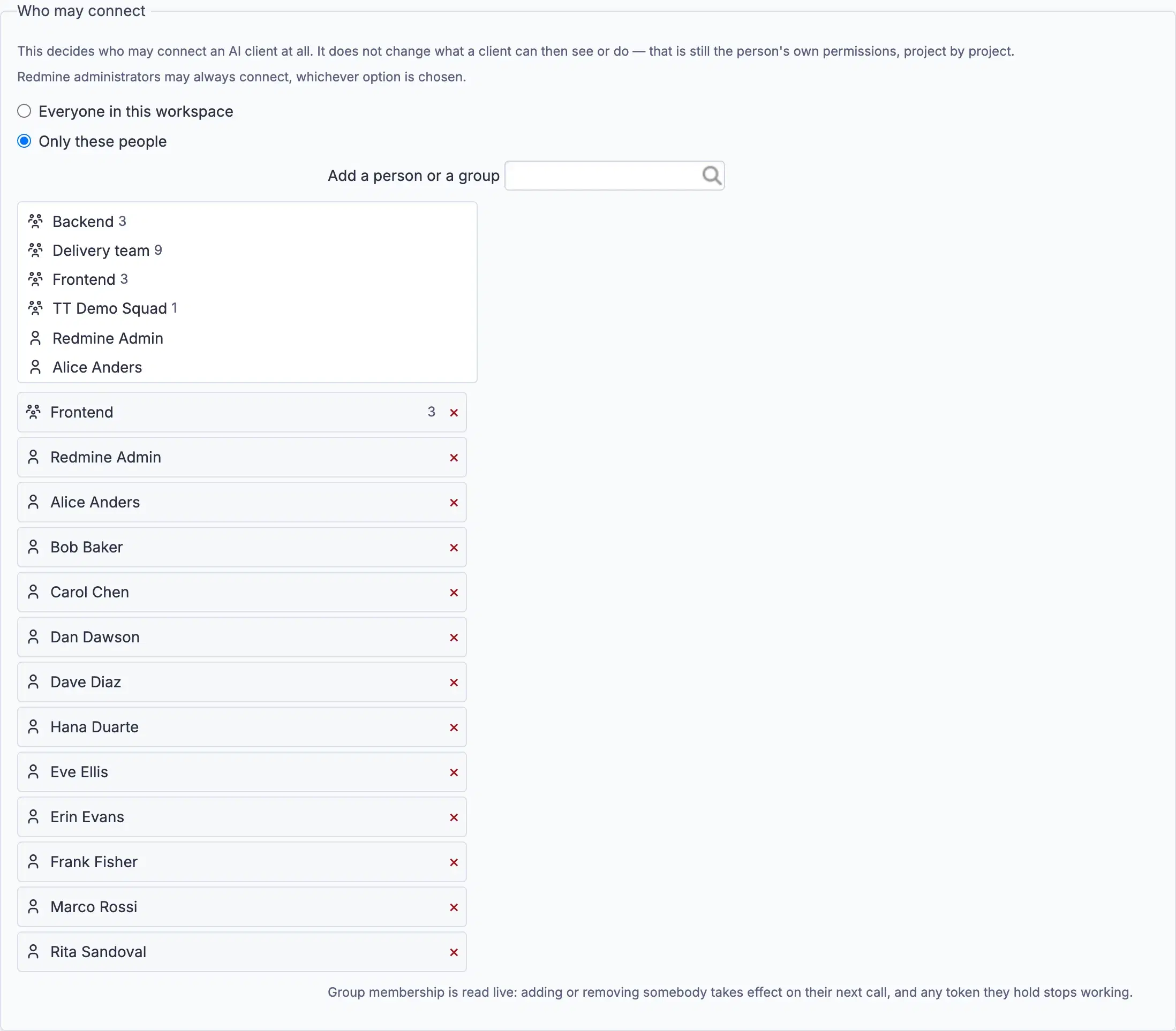
An administrator decides who may connect a client at all, on the settings page and nowhere else. The choice is everyone in the workspace, or only the people and groups named there. A new workspace starts closed, with nobody named, because an AI door should not open itself. Redmine administrators may always connect.
That list decides whether somebody may connect, and nothing else. What a connected client can see or do is still that person's own permissions, project by project.
| Setting | Default | Effect |
|---|---|---|
| Enable the MCP endpoint | On | Off refuses every request |
| Read-only mode | Off | Every write tool disappears from the tool list and is refused if called anyway. Overrides Allow issue writes |
| Allow issue writes | On | Creating issues, updating them and adding comments |
| Allow suite tools | On | The read-only tools contributed by other features, shown only when those are installed |
| Requests per minute, per user | 120 | 0 turns the limit off. Counted per person |
A switched-off tool vanishes from the tool list and is refused if called anyway, with the same answer an invented name gets. Hiding a tool that would still run is a convention, not a control.
The endpoint has its own master switch and does not depend on Redmine's REST web service setting. You can offer MCP without opening the REST API, and close the REST API without silently losing MCP.
A create, update or comment made through a client writes exactly the history the web form writes, attributed to the key's holder. That includes a field change with no note attached. Nothing an agent does is invisible.
Each tool call is logged with the tool's name, the person, the response status and how long it took. The arguments and the results are never logged, because a record of what an AI asked about would be a second copy of your data. Where the Audit Trail is installed, connecting and disconnecting are recorded there with the person as the actor.
Each person can disconnect their own clients under My account. An administrator can disconnect any one of them, or all. It takes effect on the client's next call.
Switch the endpoint off and every request is refused. On your own Redmine, removing the plugin loses nothing. Every change it made was an ordinary change to an issue, made by a real person, and it is all still in the history.
MCP is on the Business and Enterprise plans. Startup and Plus do not include it, and a workspace on either is refused with a message naming the plan it needs. Every RedminePRO plan keeps full Redmine administrator access.
The RedminePRO demo workspace has MCP switched on, so you can point a real client at a real workspace before you buy anything. See what each plan includes, or look at the rest of what RedminePRO adds to Redmine.
Set-up and permissions: MCP in the Knowledge Base. Install it on your own Redmine.
7-day trial on any plan. Full Redmine administrator access from the first day.